
From the sample
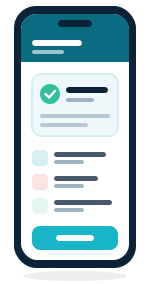
to the patient's phone.
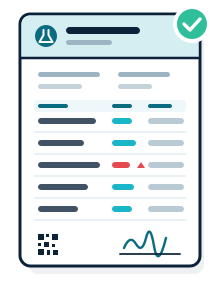
E-Lab registers the patient, prints the bill, takes results from the technician or the analyser and sends the finished report on WhatsApp, email or the Lifora app. The owner sees the day's cash and every changed bill.
- Normal ranges for men, women and children
- CBC results from the analyser
- Reports on WhatsApp, email and the Lifora app

From the first entry to the day's close.
What happens to one patient's record, in order.
- Step 01
Patient registered
Bill and barcode printed
- Step 02
Results entered
Abnormal values in red
- Step 03
Report sent
On the patient's WhatsApp
- Step 04
Day closed
Cash and card matched


One patient entry starts everything.
The bill, the sample barcode, the pending report and the day's collection all come from the same entry. Nobody types the patient's name twice.
Counter and bench
Reception, results and delivery of the report.
Patient entry & billing
Register the patient, add tests from the keyboard, take the money and print the bill.
15 features02Test reports & design
Type results fast, take CBC values from the analyser, turn an outside lab's PDF into your own report, and print it on…
15 features03Sharing reports
Send the finished report to the patient and the referring doctor on WhatsApp, by email or on Telegram, and let E-Lab…
8 features04Tests, groups & doctors
Masters are the lists that every bill and every report reads from.
14 featuresOwner's side
Money, shares, accounts and control.
Business reports
Count the day's cash and card, follow up unpaid bills, work out doctor and agent shares, and see which tests, doctors…
16 features06Financial accounting
Keep the lab's own books inside E-Lab: rent, salaries, reagent suppliers, bank deposits and money from hospitals.
16 features07For lab owners
A short routine to keep an eye on money, staff and data. How the licence and the machine licence work.
9 featuresSetup, cloud and safety
Getting started, the Lifora app and your data.
Getting started
Install E-Lab, open your lab, log in and learn the main window. Then set up the lab's details, the users, the settings…
15 features09Lifora app & cloud
Connect E-Lab to Solver's cloud once. Then reports reach patients' phones, app bookings reach your counter, and the…
14 features10Backup & maintenance
Years of patient records sit in one company file. Keep copies in more than one place, know how to bring them back…
14 features
The real screens, not drawings.
Every picture on this website is a capture of E-Lab 2.0 running on demo data. Click any screen to see it full size.
Read the dashboard
See which patients still wait for a report, and start the next job with one double-click.
How it worksKnow the Patient Entry screen part by part
Know what every box and button does, and a new receptionist can bill confidently on the first day.
How it worksKnow the Test Report screen, part by part
One screen holds the patient, the results, the bill and the receipts, so a correction never needs three windows.
How it worksSet up a test in Test Master
One screen holds a test's price, unit, ranges, default result and analyser name, so every bill and report gets them right without retyping.
How it worksClose the day with the Daily Collection Report
See every rupee received today, split into cash and card, on one screen instead of opening bill after bill.
How it worksDesign the header, footer, logo and signatures in Report Studio
Make the report look like your lab's own letterhead, with your logo, colours and footer, and see each change on an A4 preview.
How it worksThe work your team does every day.
Know the Patient Entry screen part by part
Know what every box and button does, and a new receptionist can bill confidently on the first day.
- Lab No. given when you leave the Date box
- Title sets Gender; Mr. gives Male
- Gender picks the normal range
Bring CBC results from the analyser
The whole CBC lands in the report in one click, so the technician checks numbers instead of typing them.
- Open the test. Masters › Test Master, open a CBC test such as Haemoglobin.
- Type the keyword. In Machine Keyword, type the parameter name exactly as the analyser sends it, with the same % or #…
- Save and repeat. Save, then repeat for every parameter.
Close the day with the Daily Collection Report
See every rupee received today, split into cash and card, on one screen instead of opening bill after bill.
- Open the report. Go to Reports > Daily Collection Report. Today's payments load at once.
- Change the dates if needed. For another single day, put the same date in From and To. For a week or month, set both.
- Read the totals. At the bottom are Discount, Cash Amt and Card Amt. Money received is Cash Amt plus Card Amt.
Lifora: the report on the patient's phone.
Connect E-Lab to the cloud once. Reports reach patients' phones, app bookings reach your counter, and the owner approves reports and reads the day's figures from anywhere.
- Patients get each report in the Lifora app.
- Test bookings from the app reach the counter.
- The owner approves reports and sees the day's figures on the phone.
- An alert when a bill is changed or deleted.
68 videos, one question each.
Short videos from our YouTube channel, shown on the real screen.

10 Questions to Ask Before Buying Pathology Lab Software | e-Lab Buyer's Guide in Hindi
Asked every week. Answered here.
What's the difference between E-Lab and Lifora?
E-Lab 2.0 is the full lab-management software your team runs on a Windows PC — patient entry, results, reports, finance, analyzer integration. Lifora is the free companion app your patients install — it receives reports the instant your lab sends them, no separate portal or login. The two are built to work together, but you can also run Lifora on its own as a phone-only lab — see the next question.
Can I really run a lab with just my phone, no computer at all?
Yes. Open Lifora, register as a Lab Admin, and you get a complete standalone lab inside the app — add patients, pick tests, enter results and generate a fully-branded PDF report, all from your phone. No PC, no printer, no separate installation. It's built for home-collection agents, single-technician centres, and anyone who wants to start a lab today without buying hardware first.
How does Smart Report Scan actually work?
This is for when you collect the sample but send the actual test out to a partner lab — Dr. Lal PathLabs, Thyrocare, or a local lab you outsource to. They email or courier back their own PDF, in their own format, with their own header. Instead of retyping every value by hand, scan that PDF into Smart Scan — it reads the test names and results off it and rebuilds them as a clean report in your own branding: your header, your layout, your QR code. The partner lab's report never reaches your patient — they only ever see the one with your name on it, and you save the time a manual re-entry would have cost.
Is there a free trial, and what does it cost after?
Every standalone lab on Lifora starts with 5 free patient reports — no card, no commitment. Once you're ready, registering with a License No. from the company unlocks unlimited patient entries on that lab, permanently. E-Lab 2.0 for your PC is also available on a free trial — reach out on the enquiry form below or on WhatsApp for current pricing for your lab's size.
How does licence registration work, and can I see which licence I'm on?
Registration is verified online with the company using your License No. (plus a Partner Code if a dealer set you up) — no offline keys, no bypass. Once registered, your Lab Info screen always shows exactly which License No. your lab is running on, along with the registration date and your lab code, and you can register again any time — a new licence, or a repair if online features ever stop working — right from that screen.
How does a patient sign up, and what if they visit more than one lab?
A patient installs Lifora once and verifies their mobile number with an OTP — that's the only setup, ever. That mobile number is their identity across every E-Lab lab they visit. Reports from every lab sit together in one "Reports Received" feed, organised by lab, so switching labs or seeing a specialist elsewhere never means a second app or a second sign-in.
Is patient data private and secure?
Reports are delivered only to a patient's verified mobile number — the "Lifora Verify" tick at patient entry confirms the number is genuinely on the app before anything is sent, so a report never lands on the wrong phone. Every report also carries a QR code for independent online verification, so doctors and patients can confirm it's authentic.
What if a patient isn't on Lifora yet?
Not a problem — E-Lab still sends a polished, branded PDF report straight to the patient or referring doctor over WhatsApp or Telegram in one click, the moment results are ready. Send to Lifora simply lights up as an extra option the moment that patient's number is verified on the app.

See your own work in E-Lab.
Tell us your tests, your analyser and how you send reports today. We show you the same work in E-Lab and Lifora, on a call or at your lab.
Book a free demo
Leave your number. We call back, understand your work and show it on screen.