Start with the floor
Set up the real sections and table names, the menu and the supported variants or extras. Test ordering with the staff member who will use it, including similar dish names and a guest changing a quantity.
Restaurant billing, KOT and table management for your service team.
Real screens from the Speed Plus 9 manual. Open any image to inspect the details.
 View full size ↗
 View full size ↗
 View full size ↗
 View full size ↗
 View full size ↗
Tablio focuses on the service journey: the floor team takes the order, the kitchen prepares it and the cashier settles it. Shared table and order references help those roles stay aligned. The connection with Speed Plus should then carry the supported business records into the wider accounting workflow.
Set up the real sections and table names, the menu and the supported variants or extras. Test ordering with the staff member who will use it, including similar dish names and a guest changing a quantity.
Send the order through the configured KOT or kitchen display. Demonstrate additions and corrections after the first send. The kitchen needs to know what is new, which table it belongs to and how its supported status actions affect service.
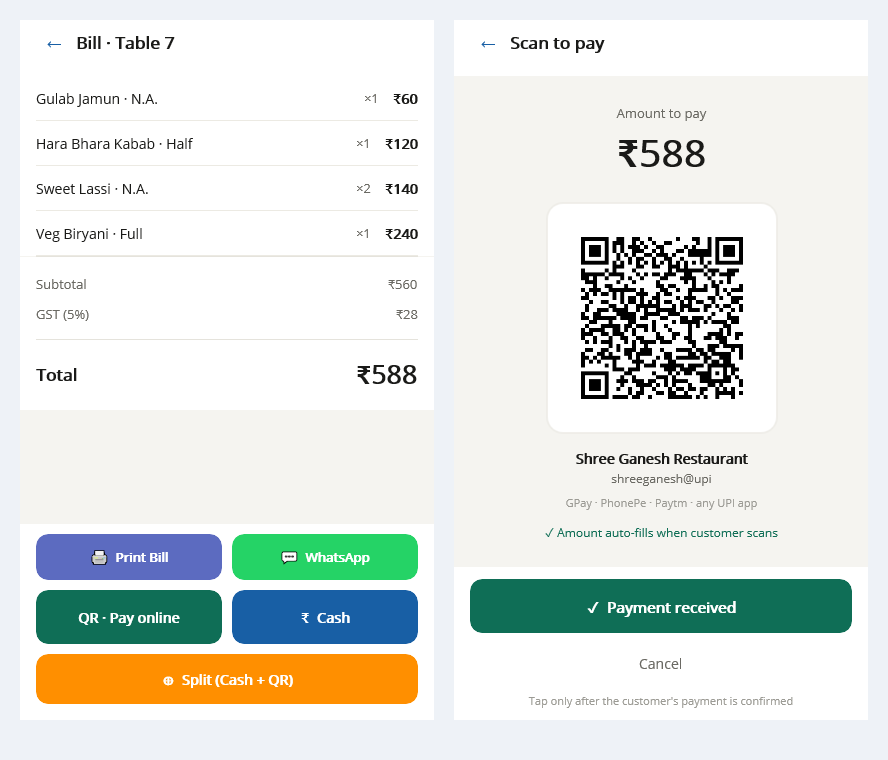
Review the final order, supported discounts and payment allocation. Demonstrate bill splitting where required and compare collections by method. Follow a sample transaction through the configured Speed Plus posting connection so accounts staff understand its destination.
No. The roles need different information. Demonstrate the order display, supported preparation actions and billing screen with the respective staff, including how changes travel between them.
Tablio has a documented posting connection, but it must be configured. Confirm what is posted, when it is posted and how failures or duplicates are handled in your installation. Trace a sample bill to the destination rather than assuming the connection is complete.
Bring your menu, table plan, kitchen sections, typical order changes, discount rules and payment mix. Include the proposed printers or kitchen screens and ask for a complete service-and-settlement trial.
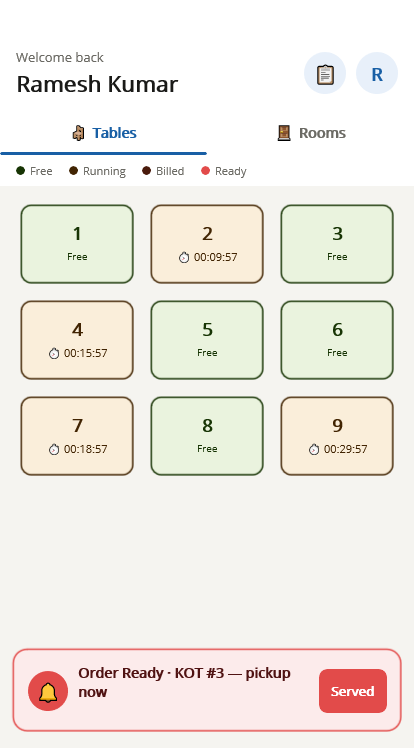
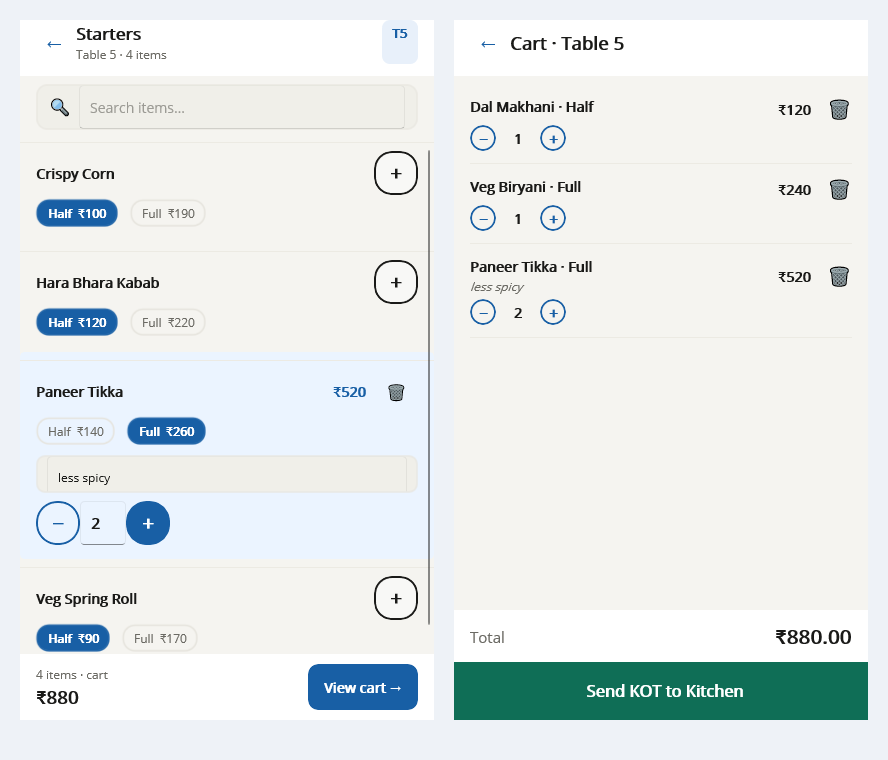
The phone screen shows tables and the menu. Select the dish and the supported portion, add a preparation note such as “less spicy”, and inspect the cart before Send KOT to Kitchen. Review later rounds through the actual active-order workflow.
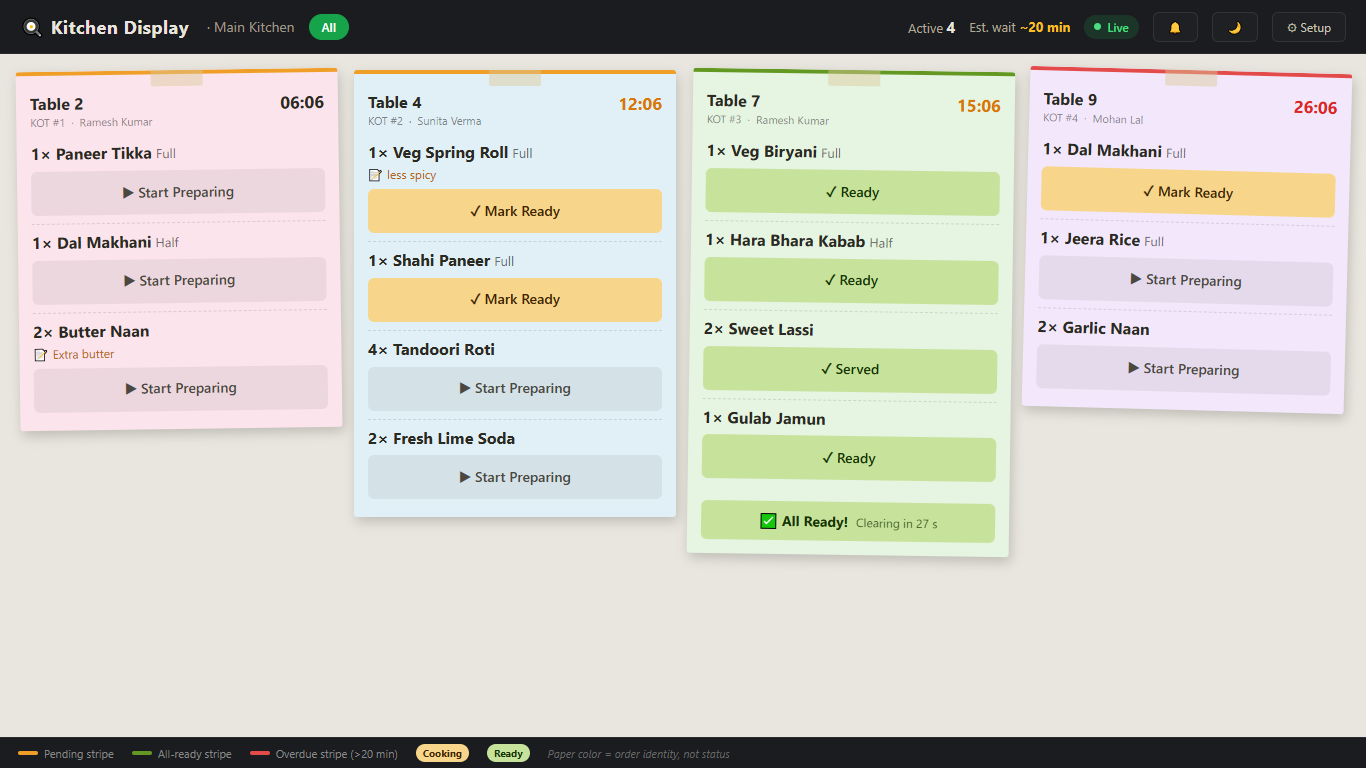
The demonstrated kitchen screen shows tickets with Start Preparing and Mark Ready actions for individual items. A fully ready ticket shows All Ready. Check the correct kitchen connection during setup and let staff practise additions and status changes with a sample table.
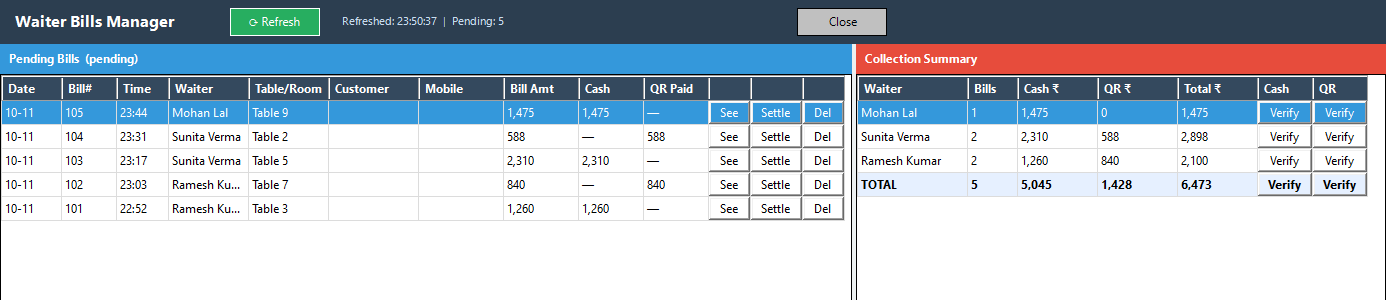
Waiter Bills Manager keeps received bills and collection information visible on the PC. Use See for inspection and follow the configured Settle process for posting. Validate payment allocation and the applicable sale type; do not assume a phone payment action alone completes every PC accounting step.
Set up waiters, tables and Upload All Masters.
Follow the waiter phone, kitchen screen and owner PC.
Organise tables and sections, with table transfer and merge workflows.
Keep kitchen orders visible through the configured KOT and KDS workflow.
Manage bills, discounts and configured cash, UPI and card payments.
Work with menu variants and staff roles for everyday restaurant operations.
Set up the menu, tables, kitchen and staff roles.
Take the table order and route it to the kitchen.
Review the bill, collect payment and check the day’s reports.
Confirm the supported edition, licence, devices and connection requirements with Solver Solutions. Connected workflows need the relevant server and Speed Plus integration configured.
Yes—request a demonstration with a small sample of your items and typical transactions. Ask the team to show entry, review and the resulting business records.
Request a current quotation covering the product, installation, training, hosting and any recurring services needed for your setup.
See the existing detailed Tablio feature and restaurant workflow page.
Read the complete Tablio guide ↗These guides explain related Speed Plus capabilities. Confirm which are included in your selected product and setup.
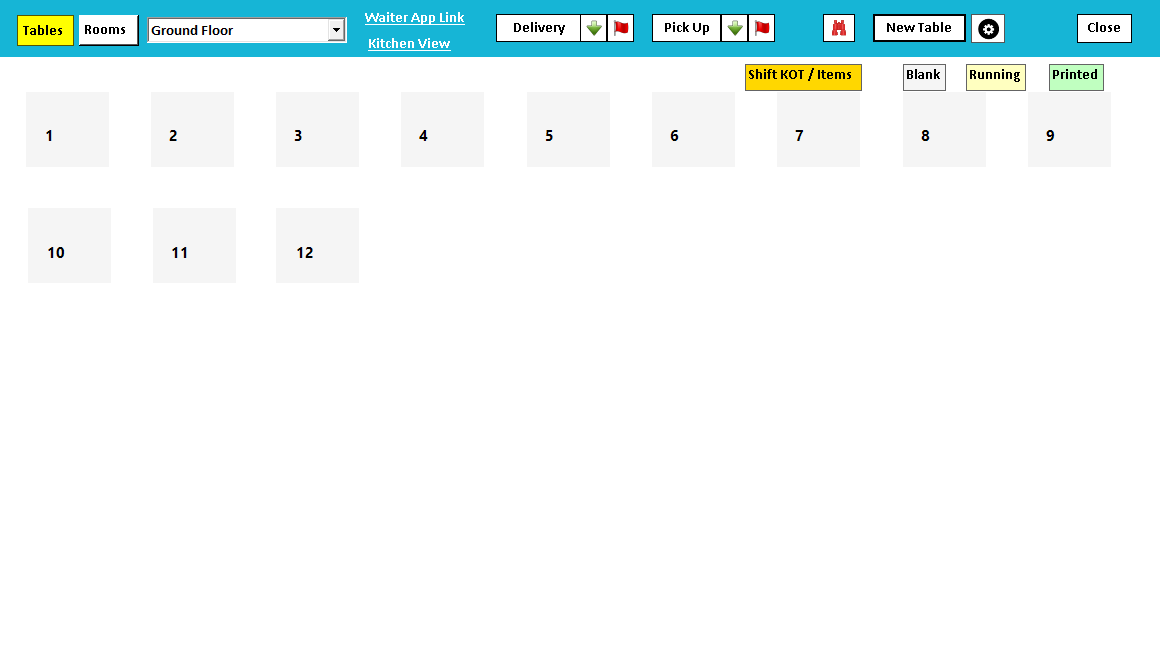
Keep the restaurant floor understandable.
Read the guide →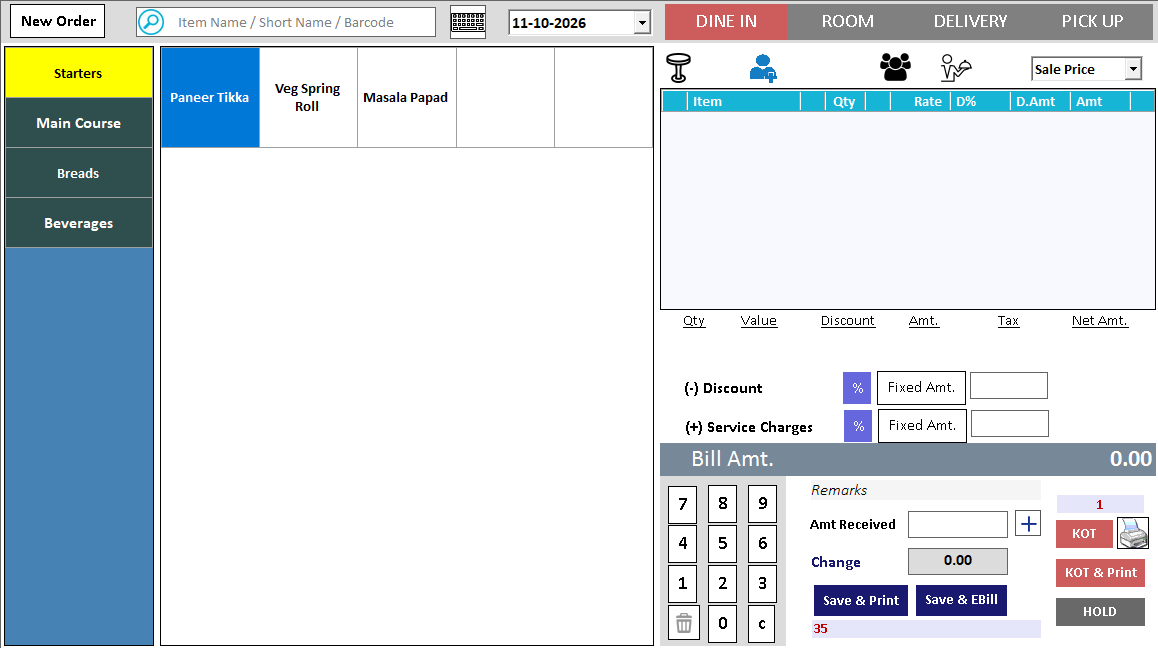
Give the kitchen the order it needs.
Read the guide →Bring kitchen orders onto a shared display.
Read the guide →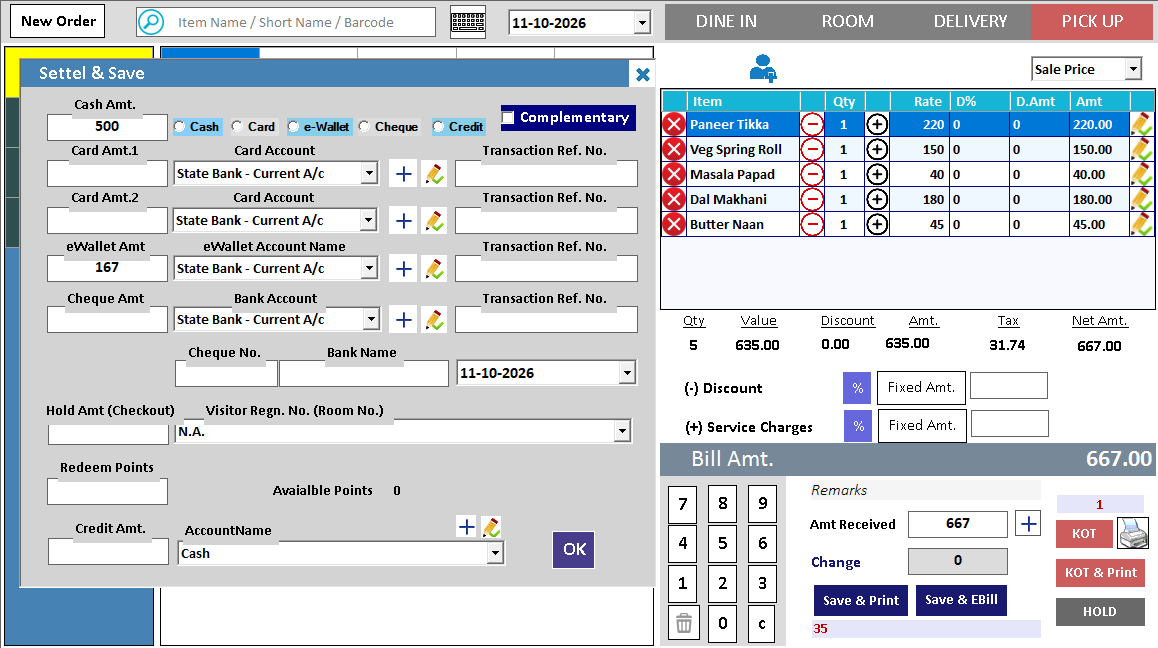
Bring the served order to a clear final bill.
Read the guide →