Bring kitchen orders onto a shared display.
Use the configured kitchen display to keep relevant orders visible to preparation staff. Align the display workflow with how the kitchen receives and completes work.
Order sent from service
Kitchen display queue
Supported preparation status
See the screens behind the workflow.
Real screens from the Speed Plus 9 manual. Open any image to inspect the details.
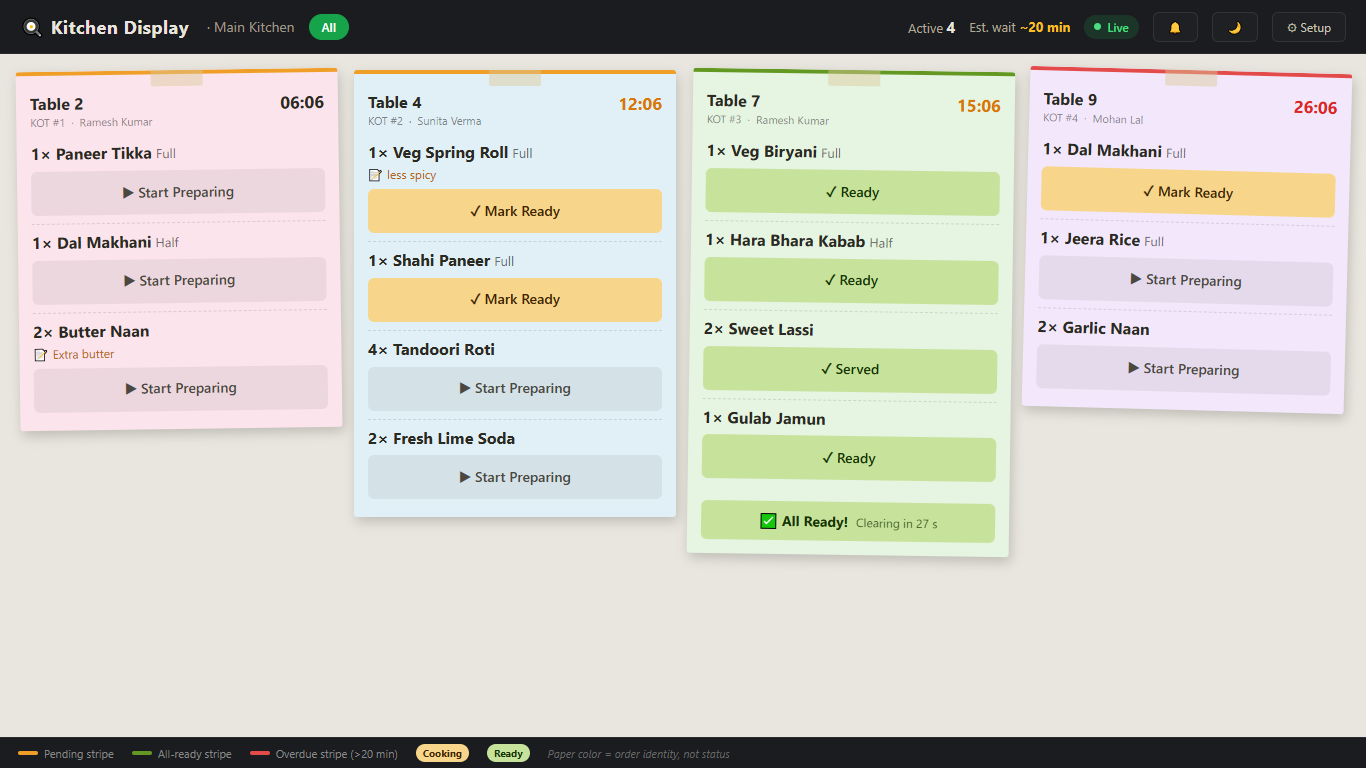 View full size ↗
Move each item through its preparation state.
The demonstrated kitchen screen has Start Preparing and Mark Ready buttons on individual items. A completed ticket shows All Ready before clearing. This is different from a single Cooking switch for the entire ticket. The manual notes that the deployed kitchen connection must match the restaurant setup.
Make the kitchen queue visible where the work happens.
A Kitchen Display System presents supported restaurant orders on a kitchen screen. Its practical role is to keep the preparation team looking at identifiable orders and quantities, rather than relying only on loose paper or repeated verbal instructions.
Use the configured KDS connection and test a new order, an addition and the supported status actions. Review visibility at the working distance and understand how the display responds when the connection is interrupted. Tablio’s KDS should be demonstrated as part of the complete floor-to-kitchen setup.
How to use it.
Bring kitchen orders onto a shared display.
- 01
Configure the kitchen display and connection
- 02
Send a sample order from the supported ordering screen
- 03
Review how the team acknowledges and completes it
What this looks like in your business.
A kitchen reviews several table orders on its display while front-of-house staff manage service.
Good questions.
Clear answers.
Choose the workflow that fits your business and confirm its setup in a demonstration.
Can the kitchen display replace every printer?
That depends on the supported routing and your service process. Test each kitchen section and establish the fallback procedure before deciding whether printed tickets are still needed.
What setup should I confirm?
Device, connection and status-update behaviour must be tested across the full order path.
Take an order from table to payment
Follow the service journey across the table, kitchen and billing counter.
- 01Restaurant table managementRead guide →
- 02Restaurant menu variantsRead guide →
- 03Restaurant KOTRead guide →
- 04Kitchen displayYou are here
- 05Restaurant billing and paymentsRead guide →
What else can help?
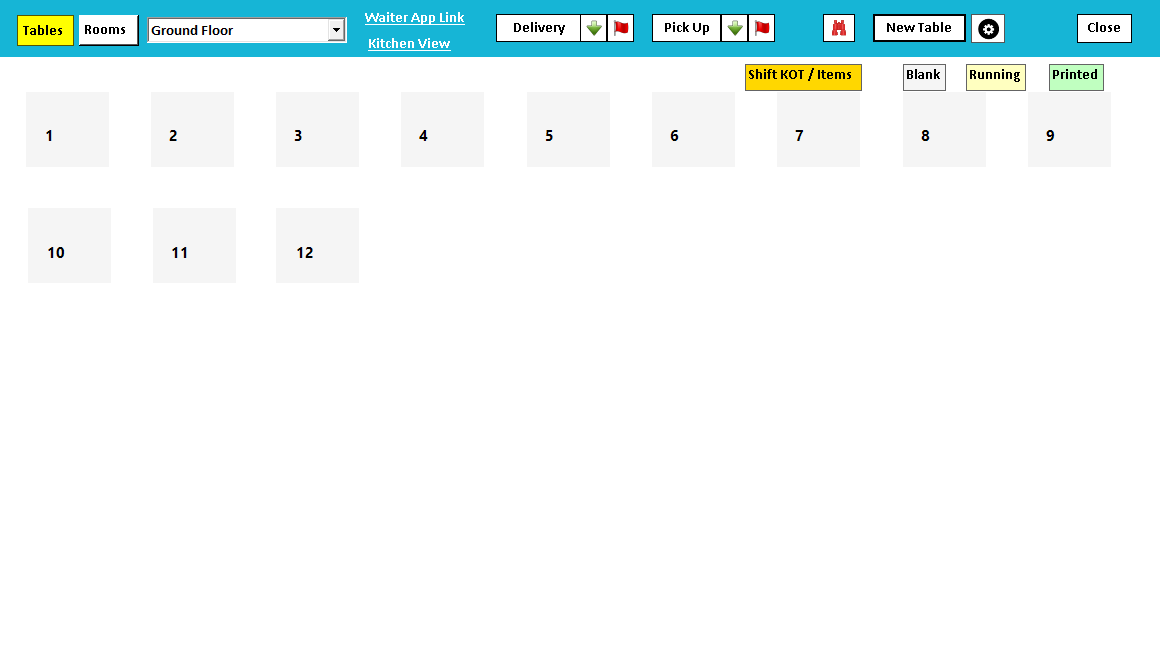
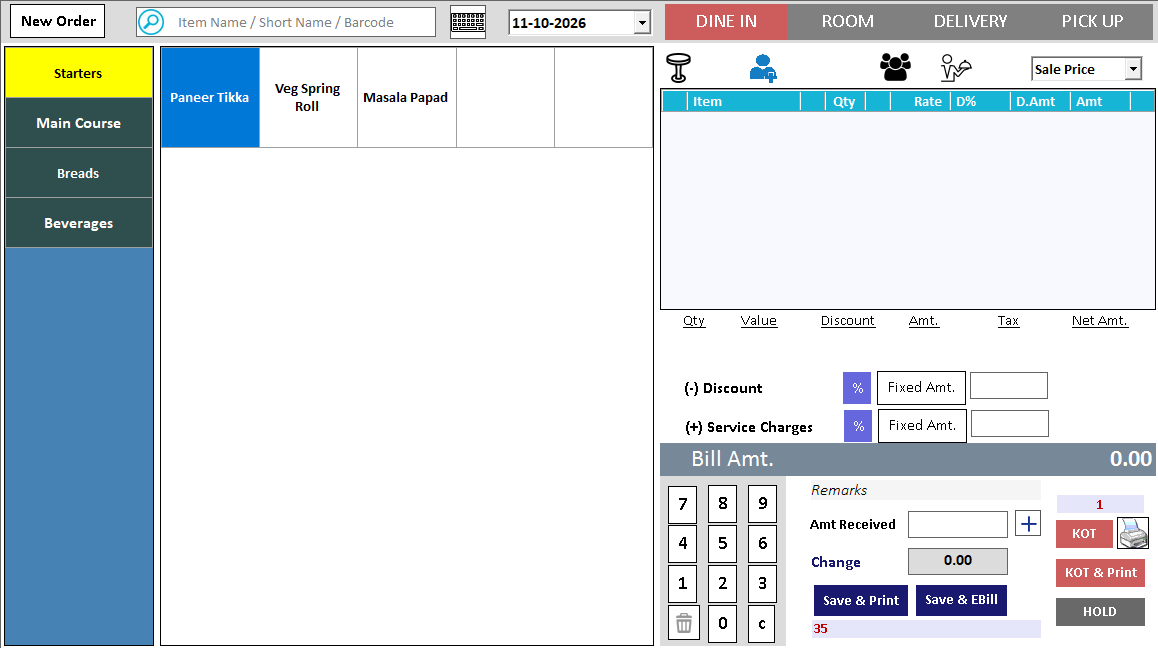
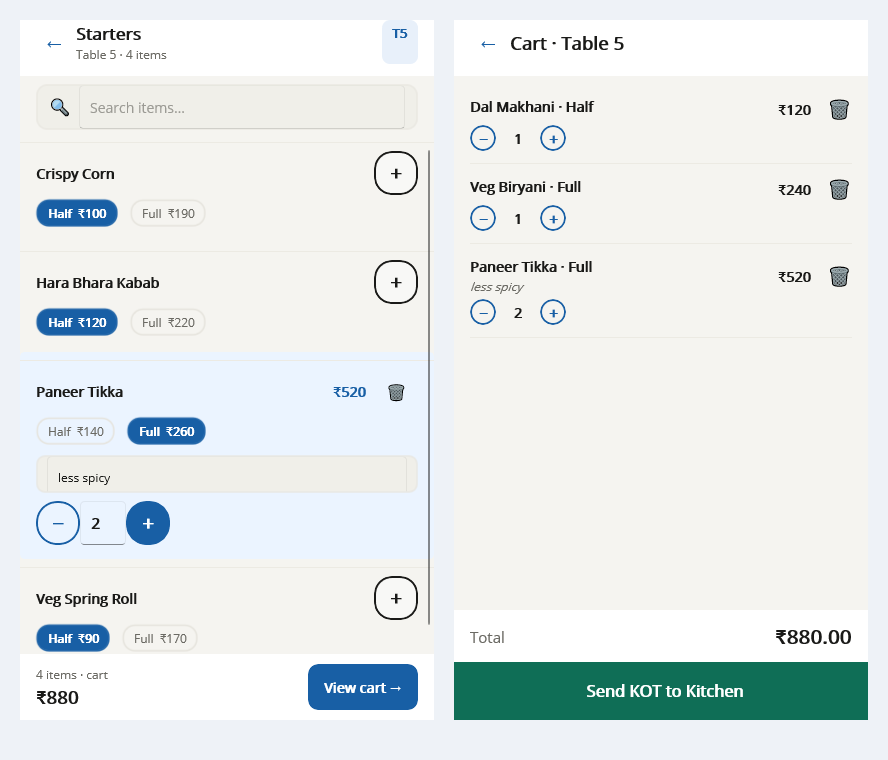
See it with a sample from your business.
Bring a sample bill or item list. We’ll show you the steps and answer your questions.