Real screens from the Speed Plus 9 manual. Open any image to inspect the details.
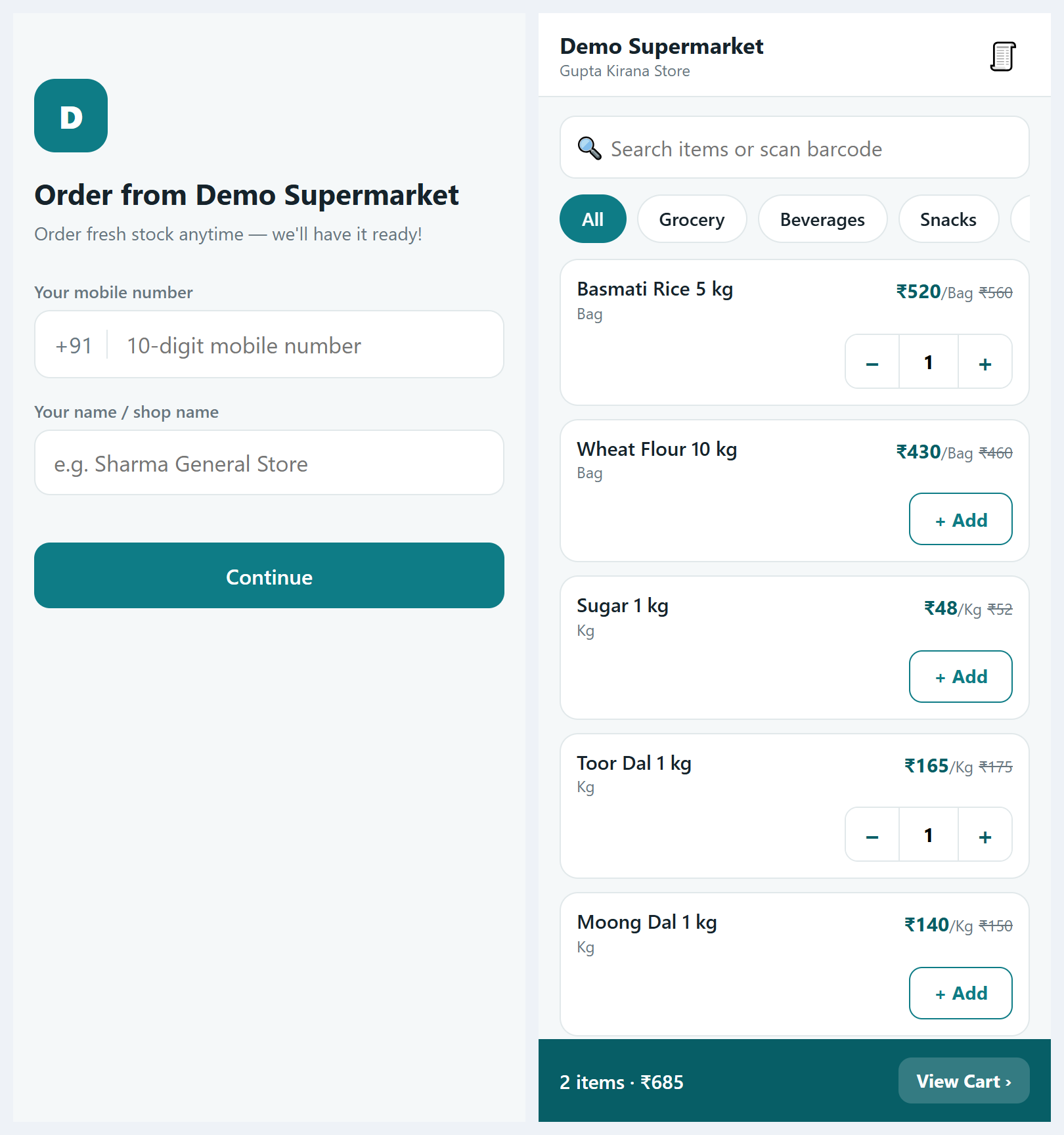
01 / A simple order page for the customerACTUAL PRODUCT SCREEN
View full size ↗Two phone screens: the sign-in with mobile and name, and the order page with items added and the cart bar.
02Review incoming orders before conversion+
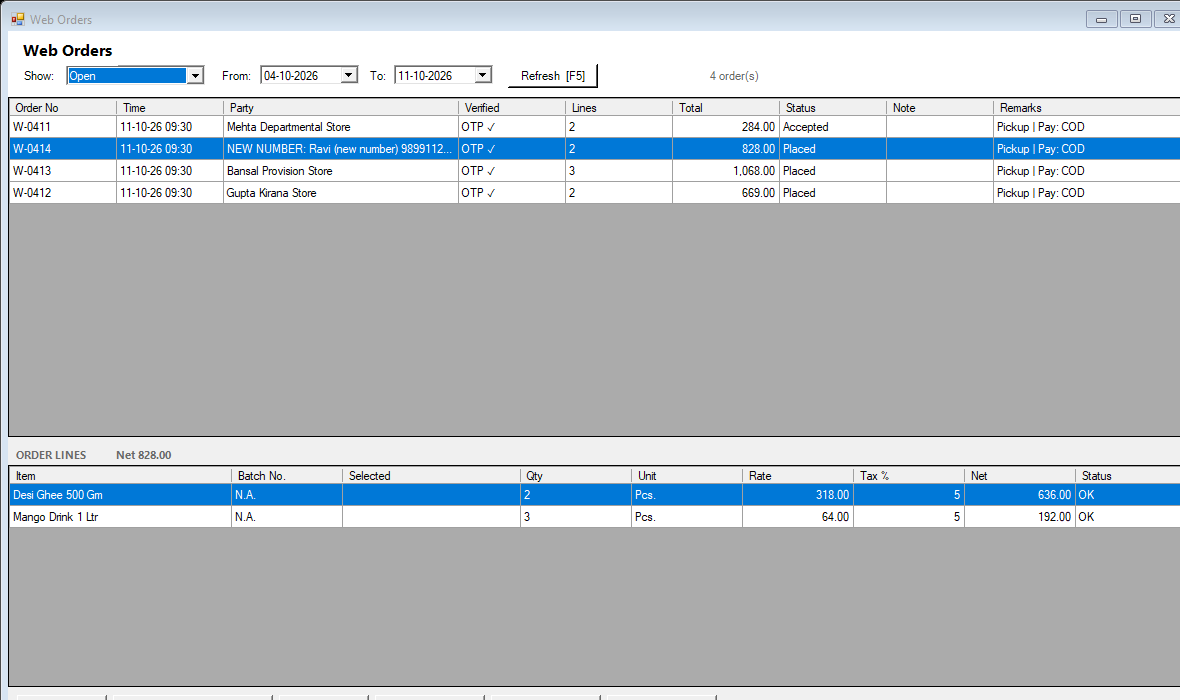
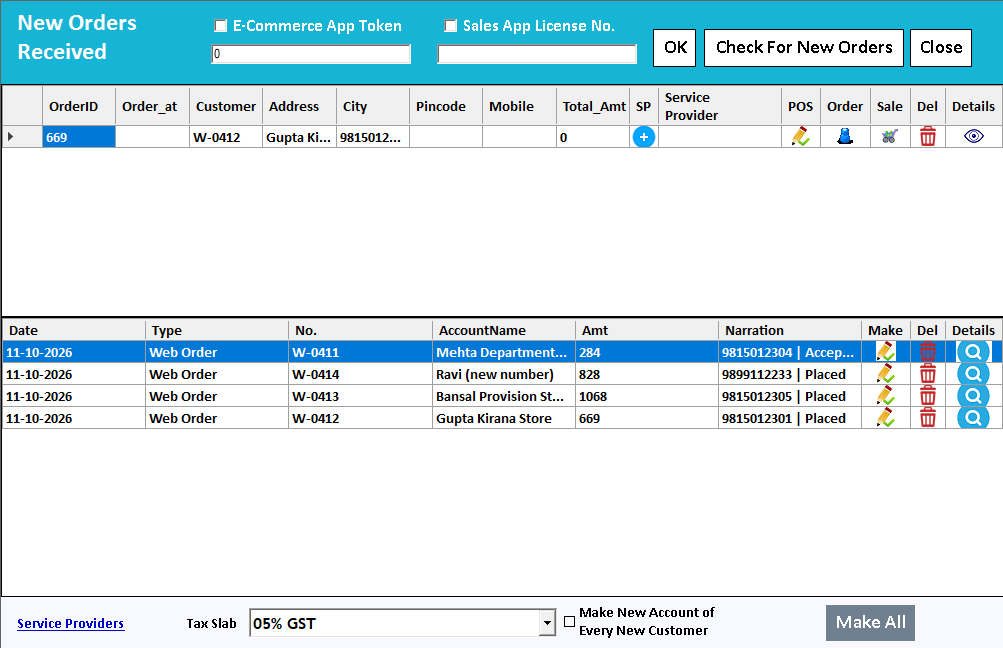
02 / Review incoming orders before conversionACTUAL PRODUCT SCREEN
View full size ↗Web Orders: the open orders on top, the selected order's lines below, and the Accept, Convert, Reject and Block buttons.03Carry the request into a Sale Order+
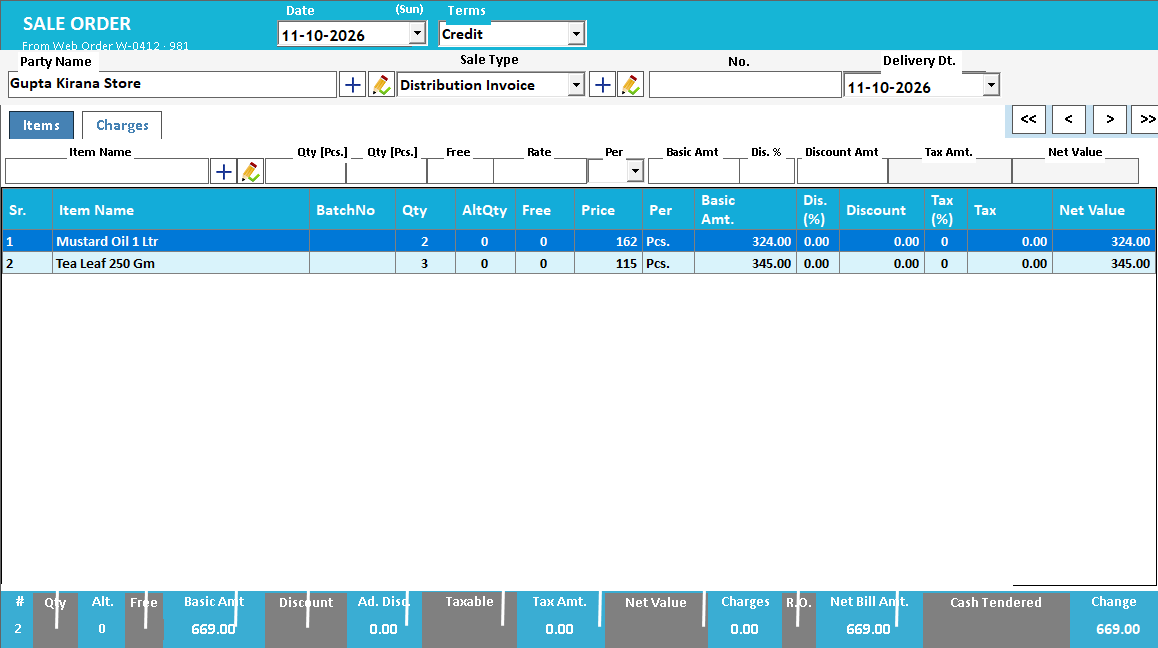
03 / Carry the request into a Sale OrderACTUAL PRODUCT SCREEN
View full size ↗The Sale Order opened from a web order: party filled and the item lines copied with their batch and quantity.
UNDERSTAND THE COMPLETE WORKFLOW
Make ordering easy without losing control of the final sale.
Web Order is a customer-facing way to send an item-and-quantity request from a browser. It is useful when retailers or repeat customers know what they want and would otherwise dictate a long list by phone or message. The business still reviews the order before billing.
01
Share the right link
Enable the configured business order link and open it as a customer would. Check that the business identity, available products and supported variants are understandable. A current link is easier to reuse than a copied list that becomes outdated.
02
Capture a clear request
The customer searches for items, chooses quantities and reviews the selected lines before submitting. Consistent units are important: two boxes and two pieces represent different requests even when the product name is identical.
03
Turn the request into a business decision
Review the incoming order in Speed Plus. Check customer identity, availability and final pricing, then use the supported conversion workflow. If only part of the request can be supplied, communicate that clearly before finalising the sale.
Is the displayed order amount the final payable invoice?
Treat it according to the configured ordering workflow. Availability, customer terms and final billing review can affect the eventual invoice. Make that distinction clear to customers rather than promising an unreviewed estimate as a final bill.
Does the customer have to install Farata?
Web Order is a browser-link workflow. Farata is a separate mobile app option for supported connected tasks. Choose the channel that suits your customers and confirm any sign-in requirements for the proposed setup.
How is this different from Web Store?
Web Order focuses on finding known items and submitting a structured request. Web Store gives customers a storefront-style catalogue for product discovery. Both need a clear order-review and fulfilment process behind them.
A CLOSER LOOK AT THE WORKING
From a customer request to a reviewed Sale Order.
Decide what customers see
The manual describes three price choices: hide prices, show the standard sale price, or use the supported party-rate option. Who can order and available stock rules also shape the customer experience. The customer page labels its figures as estimates.
Accept, identify and convert
Open Web Orders, select the incoming request and inspect its lines. Link it to the intended party and use the supported Accept and Convert actions. Conversion opens a Sale Order with the request’s lines; final billing is a later step.
Interpret the status correctly
In the documented workflow, saving the Sale Order marks the web request Dispatched. That label is not evidence that a courier has delivered goods or that a final sales invoice has been raised. Agree the supply and customer-communication process around the actual records.
Find an item, select the available variant and enter its quantity.
02
Clear order lines
Review selected items and quantities before submitting the order.
03
Order inbox
Receive web orders in the connected Speed Plus workflow for review.
04
Review before billing
Check availability, customer details and final pricing before converting the order.
HOW IT WORKS
Get connected in three steps.
01
Enable and share your configured business order link.
02
The customer selects items and submits an order.
03
Review the request in Speed Plus and convert it through the supported workflow.
Before you get started
What setup does Web Order need?
Confirm the supported edition, licence, devices and connection requirements with Solver Solutions. Connected workflows need the relevant server and Speed Plus integration configured.
Can I try it with my own business workflow?
Yes—request a demonstration with a small sample of your items and typical transactions. Ask the team to show entry, review and the resulting business records.
What does it cost?
Request a current quotation covering the product, installation, training, hosting and any recurring services needed for your setup.