Check the first order
Start with a real menu choice, portion and quantity. Confirm what appears on the floor screen and kitchen output. A selection that looks clear to the waiter can still need better wording for the kitchen.
Explore restaurant billing, table management, KOT, kitchen display and daily reports with Speed Plus and Tablio.
Real screens from the Speed Plus 9 manual. Open any image to inspect the details.
 View full size ↗
 View full size ↗
 View full size ↗
 View full size ↗
The table reference tells the floor where the guest is. The kitchen order tells the kitchen what to prepare. The bill tells the cashier what to collect. An effective setup keeps these records connected while allowing each team to see the information relevant to its role.
Start with a real menu choice, portion and quantity. Confirm what appears on the floor screen and kitchen output. A selection that looks clear to the waiter can still need better wording for the kitchen.
Add an item after the first send and demonstrate a correction or table transfer. Agree how staff identify a new instruction, so a resend is not mistaken for another preparation request.
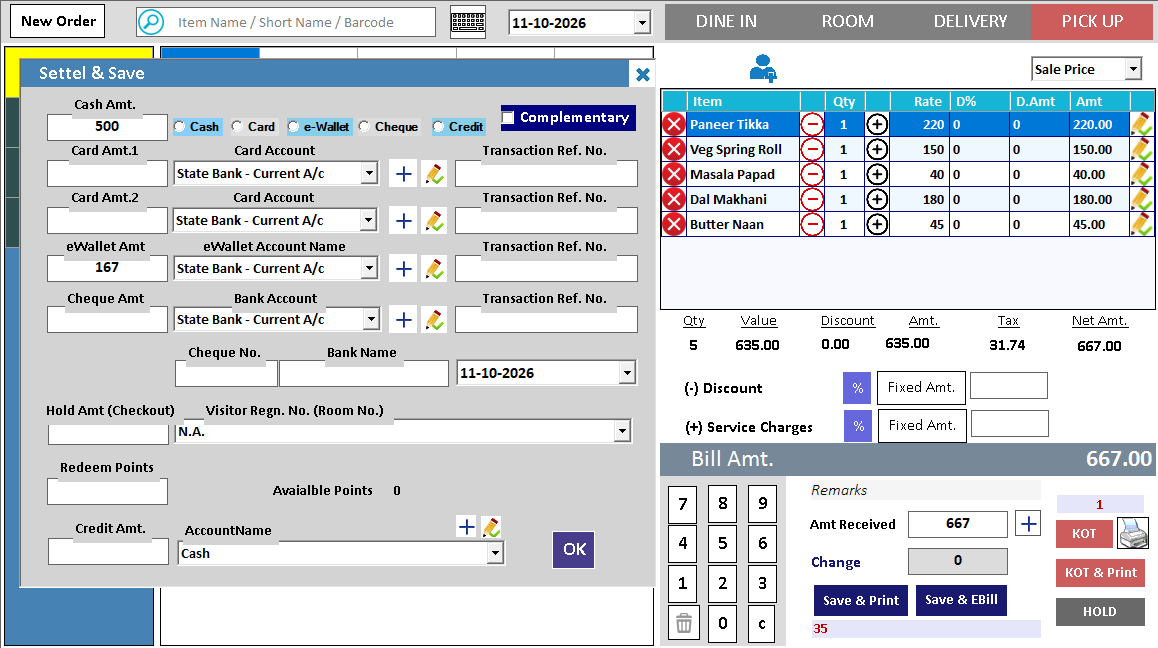
Review the table bill and actual collections, including a mixed payment. Compare the saved bill, payment-method records and supported accounts posting. Give the next shift clear references for any unresolved issue.
The kitchen can assess ticket readability, preparation details and screen placement better than someone testing at the counter. Its feedback helps avoid a technically successful connection that is awkward during service.
Compare completed bills with cash and digital collections, then review pending service and any posting exceptions. Sales total, open orders and money in the drawer are different measures and should be understood separately.
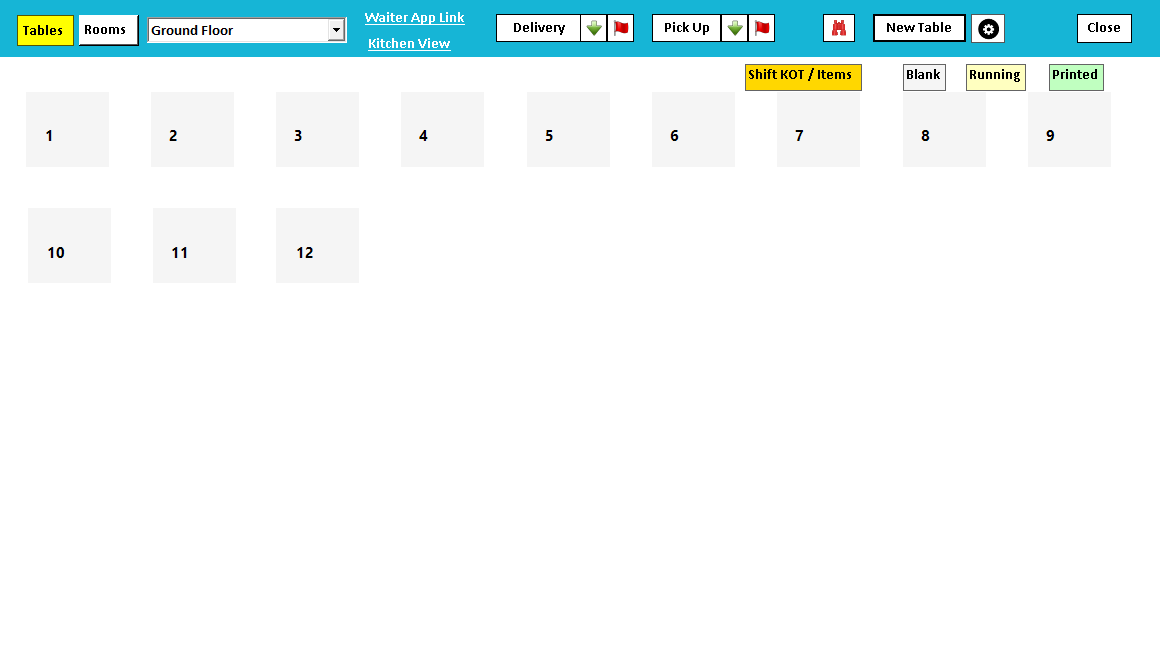
The desktop Food Service view uses these table states. Blank is available, Running has an active order and Printed means the bill has been printed while payment is still pending. Choose the floor and table before adding the next round.
A table can have several KOTs as guests add dishes. Review the accumulated order when preparing the final bill. For a table move, use the supported transfer action and check where the existing items and later additions now belong.
The payment panel shows the supported cash and other settlement fields. Record the amounts actually received and select the appropriate bank or wallet account where needed. Desktop Touch KOT settlement and Tablio’s received-bill workflow are separate paths; test both if you use both.
Give each order a clear path through service. Take the table order, send it to the kitchen, review the bill and hand the day’s records to the people who need them.
Use the floor view to identify tables and review their status. Organise sections so the floor team and billing counter use the same table reference.
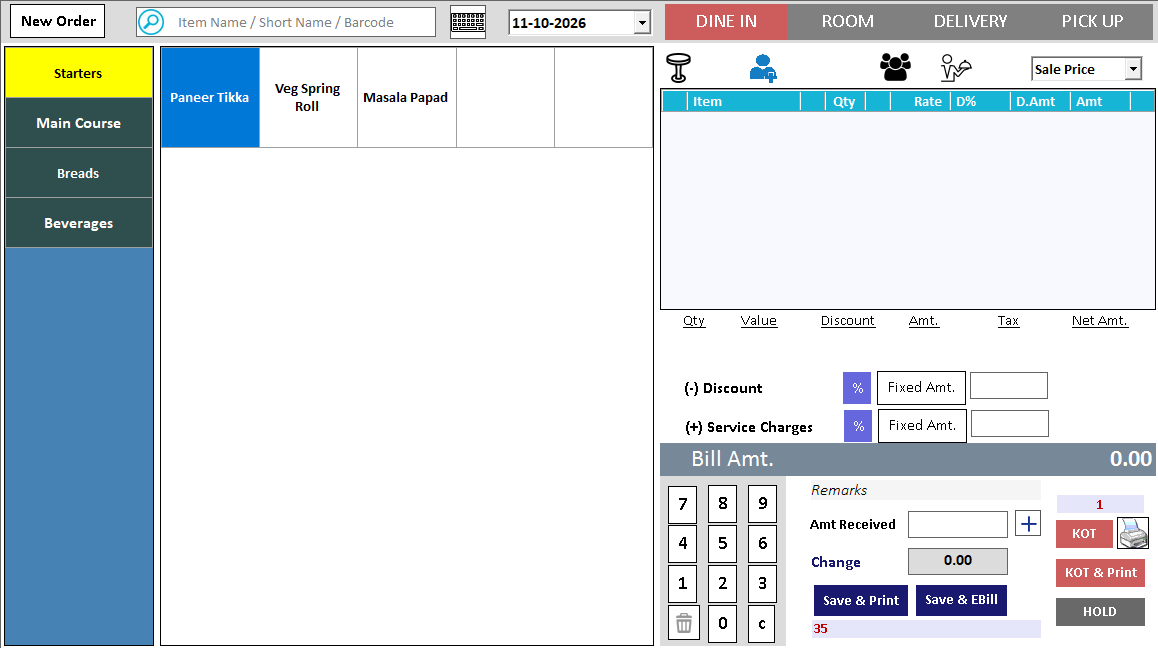
Work with the menu and item choices in the restaurant ordering workflow. Keep the item, quantity and table identifiable before sending the order onward.
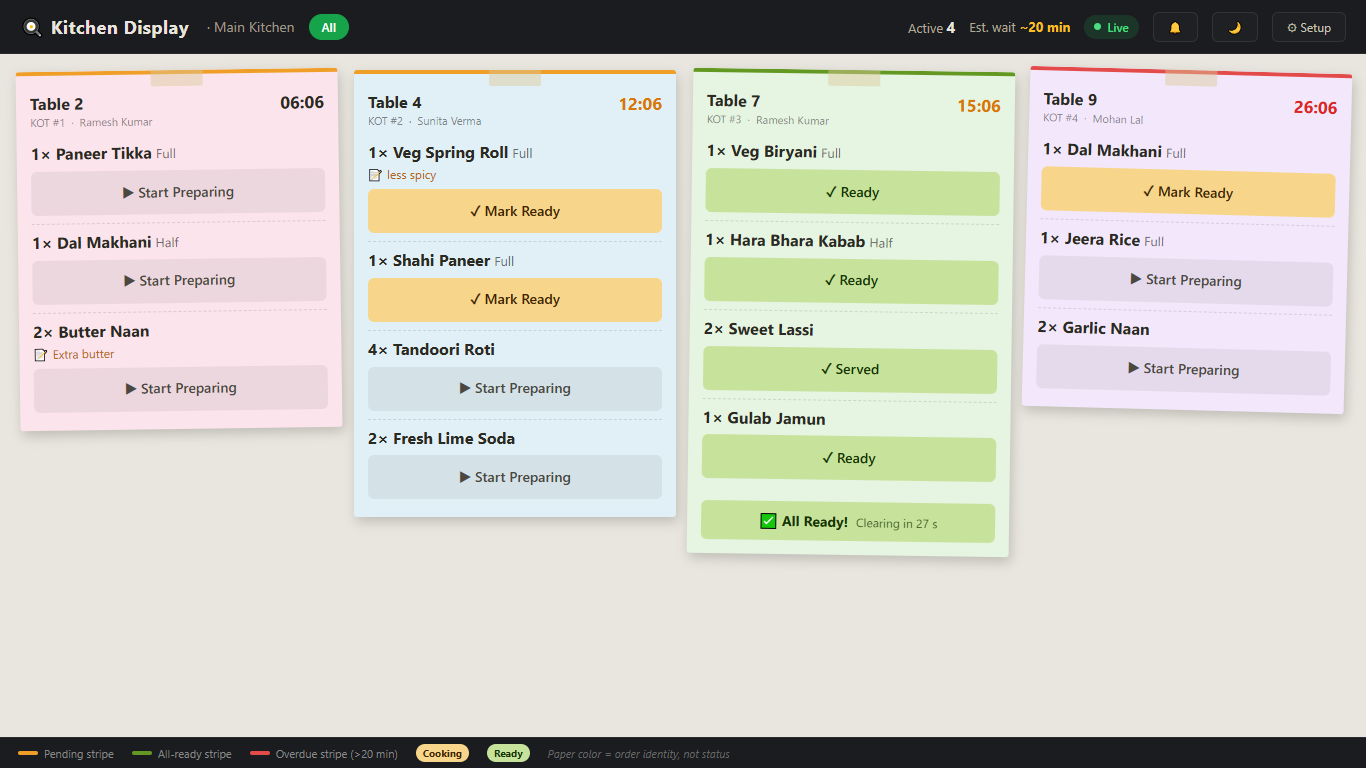
Use the kitchen-order workflow to communicate selected items to the kitchen. Keep the table and order reference visible when the team discusses an addition or query.
Tablio’s documented kitchen-display workflow presents orders to the kitchen team. Demonstrate how new orders and subsequent changes are shown in your setup.
Maintain the menu and review supported variants, combos and add-ons. Keep names and choices understandable on the order screen, kitchen output and bill.
Review items, configured discounts and the bill before collecting payment. Tablio describes split-bill and cash, UPI and card workflows.
Configure staff roles around the floor, kitchen, counter and owner. Demonstrate each role using its actual login and the actions it needs during service.
Review sales and item reports and explore Tablio’s documented posting connection with Speed Plus. Follow a sample transaction to its destination record.
Seat: choose the correct table and section.
Order: select menu items, quantities and supported options.
Prepare: send and review the kitchen order through KOT or KDS.
Settle: review the bill, collect payment and check the day’s records.
Review the selected day’s restaurant sales and inspect the supporting bills when an amount needs explanation.
Review item-level sales to understand which dishes were ordered during the chosen reporting period.
Review payment-method records and the exceptions that need attention during cashier handover.
Explore the owner dashboard and the configured Speed Plus posting workflow to understand how restaurant records reach business reporting.
Tables, menu selections, order additions and guest-service handover.
Kitchen tickets, item quantities and the order’s table reference.
Bills, collections, staff access and the daily operating picture.
Explore the Tablio product page for table management, kitchen orders and the connection with Speed Plus.
Speed Plus includes restaurant and food-billing workflows. Tablio is the restaurant-focused product described for table management, KOT, kitchen display and billing, with a documented Speed Plus posting connection. The team can demonstrate the combination suited to your setup.
Tablio describes a live floor view with multiple sections and table transfer or merge workflows. Bring your floor plan and ask to see the exact table arrangement used by your team.
KOT and kitchen-display workflows are described in the product. Confirm the printers, display devices, routing and network configuration required for your kitchen before finalising installation.
These are listed in Tablio’s menu-management features. Demonstrate representative combinations from your own menu and check their presentation on the kitchen output and guest bill.
Tablio describes split bills and cash, UPI and card payments. Ask the team to demonstrate the exact split and payment combination you use and review the resulting receipt and collection records.
The existing Tablio product information describes ERP posting to Speed Plus. Confirm which records are transferred, how posting is triggered and how completion or a pending transfer is checked in your installation.
Connectivity requirements depend on devices, deployment and integrations. Ask for a demonstration with the relevant connection interrupted, including order taking, kitchen handoff, billing and later recovery, before relying on a particular offline workflow.
The table, menu, kitchen and counter workflows can be demonstrated for cafés, dine-in restaurants and restaurant operations within a hotel. For room-service charging or combined hotel bills, confirm the exact integration with the team.
A restaurant demonstration is more useful when it follows a party through its visit.
A day-end total does not describe unfinished service.
An order taken correctly on the floor still needs to arrive at the intended kitchen destination.
Bring your menu, floor plan, table names, a sample bill and the models of your printers and ordering devices. Include a typical busy-service scenario so the demo tests the handoffs your team uses.
Explore the hotel page for reservations, guest stays, room billing and daily hotel reporting.
These guides explain related Speed Plus capabilities. Confirm which are included in your selected product and setup.
Keep the restaurant floor understandable.
Read the guide →Give the kitchen the order it needs.
Read the guide →Bring kitchen orders onto a shared display.
Read the guide →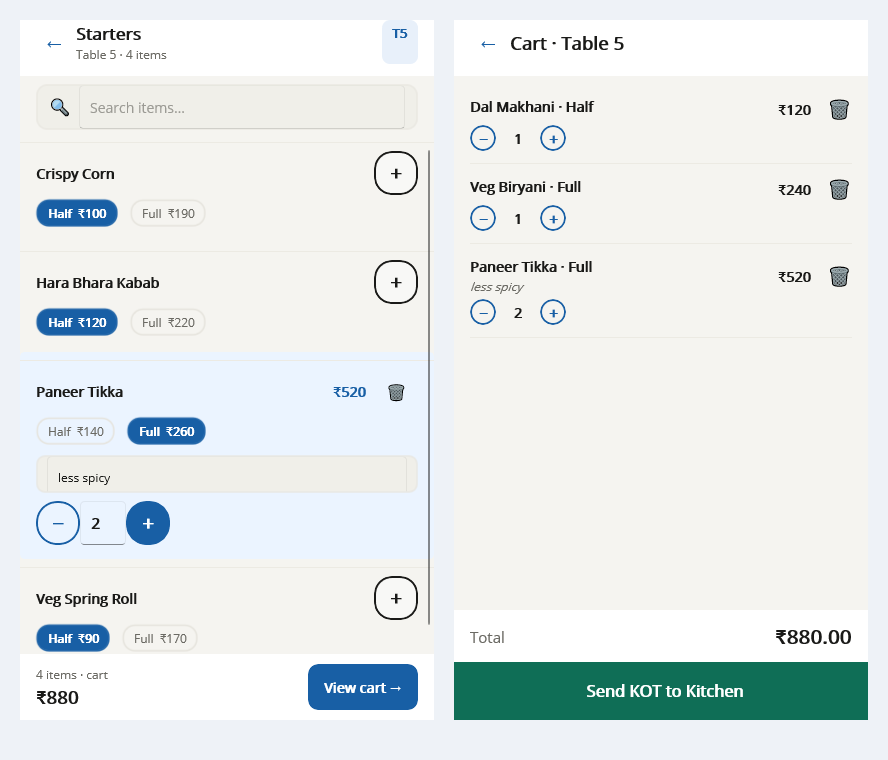
Make the menu easy to order correctly.
Read the guide →Bring the served order to a clear final bill.
Read the guide →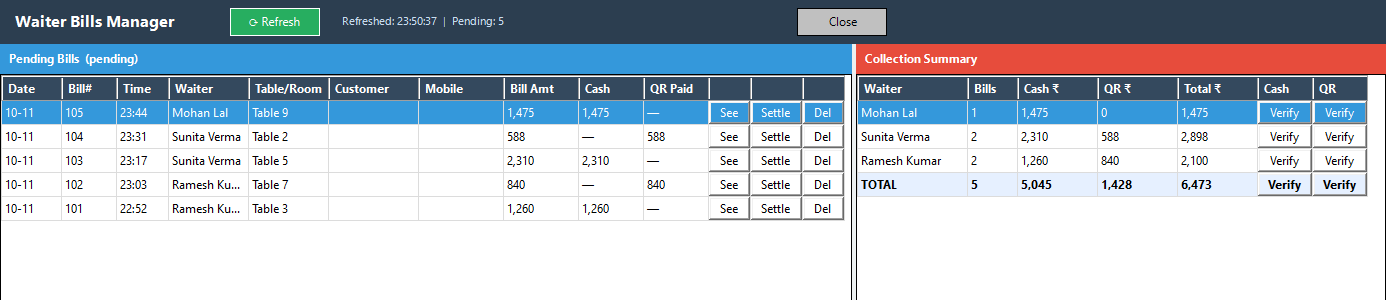
Review service through the day's records.
Read the guide →