Keep the order and the delivery in view.
Record the requested items and use the supported order/challan workflow to organise fulfilment. The sales team and dispatch team can refer to the same transaction details.
Requested quantity
Dispatch reference
Reviewed billing quantity
See the screens behind the workflow.
Real screens from the Speed Plus 9 manual. Open any image to inspect the details.
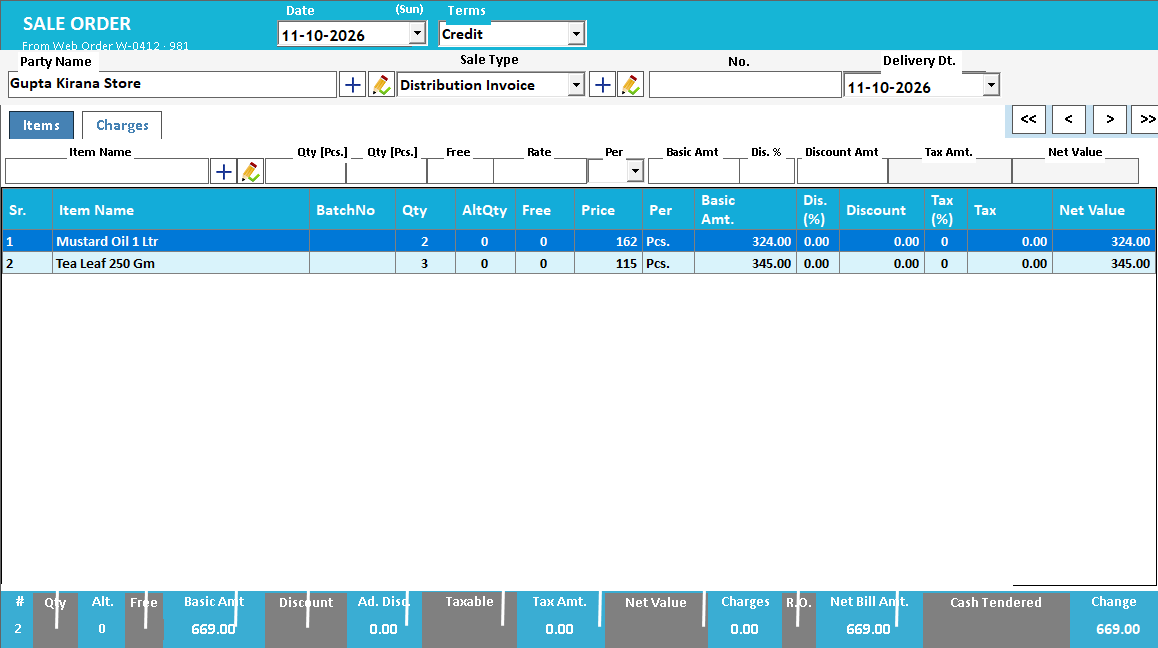 View full size ↗
Web Order conversion creates a Sale Order.
The manual shows a received customer request selected in Web Orders and converted into a Sale Order with its party and item lines. Review the carried-over batch and quantity. Saving this Sale Order marks the web request Dispatched in that workflow; it does not by itself prove physical dispatch or final invoicing.
An order, a delivery and a bill answer different questions.
An order records what was requested. A challan records the goods being moved or delivered. An invoice records the billed transaction. Keeping these stages identifiable helps a wholesaler discuss pending supply without confusing a customer request with completed billing.
Review the party and item quantities at each stage. If a customer requests 20 units but only 12 are being supplied, the delivered quantity must remain clear. Use the supported order and challan workflow to review the reference carried into billing, especially when supply happens in parts.
How to use it.
Keep the order and the delivery in view.
- 01
Record the customer order and quantities
- 02
Prepare the supported delivery document for dispatched goods
- 03
Review delivered quantities before completing billing
What this looks like in your business.
A wholesaler receives an order for 20 cartons and prepares a delivery document for the dispatch team.
Turn a web request into a reviewed Sale Order.
Follow the decisions as well as the clicks.
- 01
Review the request
Open Web Orders and inspect the customer, selected variant, quantities and remarks. A NEW NUMBER row needs a party match; a red NotFound item needs attention before conversion.
- 02
Resolve the party and items
Use Link to Party for an existing account. If an ordered item is missing from your master, add it before converting when it is needed; the conversion warning explains which lines would otherwise be left out.
- 03
Convert and check
Convert to Sale Order opens the item lines and batch details for review. Check the party, quantities and rates. For a new number, select or create the account in the Sale Order.
- 04
Save, then complete the sale
Saving the Sale Order changes the web request to Dispatched. Raise the Sale against that order through the normal billing workflow. Arrange picking and physical delivery as a separate operational step.
Based on User Manual 2026 · 28.7–28.8. Screen names and availability can vary by installed version.
See the workflow in action.
Web Order to Sale Order: What Happens Next? | Speed Plus 9 | https://solversolutions.in
SolverTeam tutorial for this topic. Screens and options can vary by installed version.
Open on YouTube ↗Good questions.
Clear answers.
Choose the workflow that fits your business and confirm its setup in a demonstration.
Why retain the challan reference after making an invoice?
It helps the team explain which delivery the bill covers. This is useful when the customer receives several consignments or the accounts person did not handle the physical dispatch.
What setup should I confirm?
Ask the demo team to show partial delivery and pending quantities for your exact workflow. Do not assume every order is billed automatically.
What else can help?
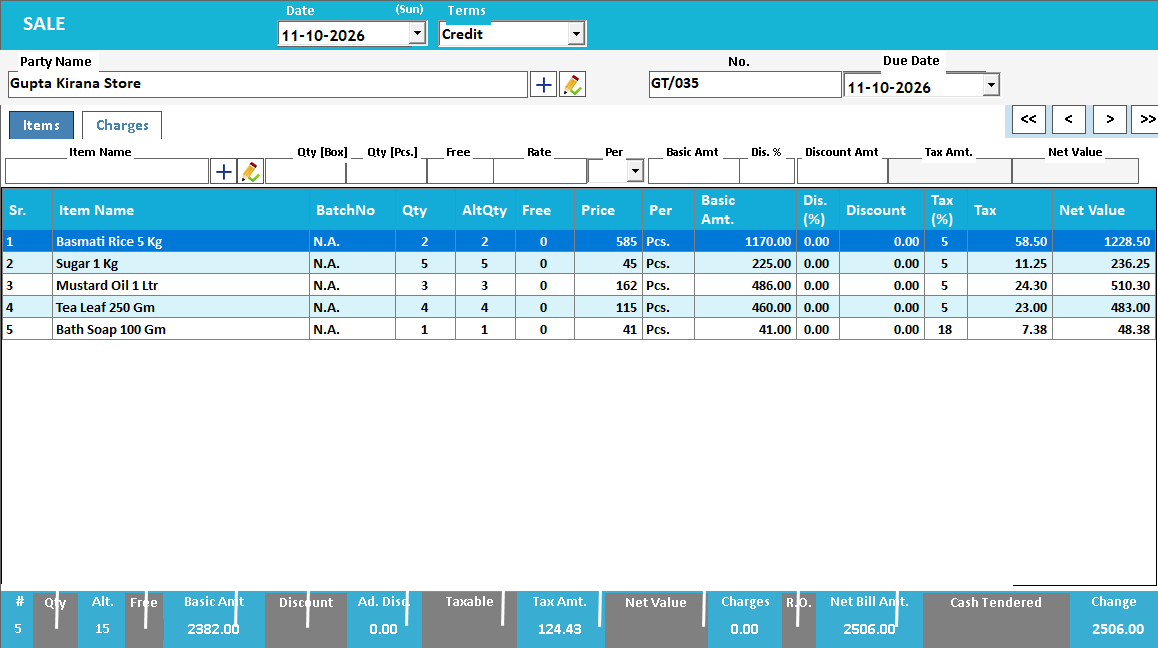
See it with a sample from your business.
Bring a sample bill or item list. We’ll show you the steps and answer your questions.