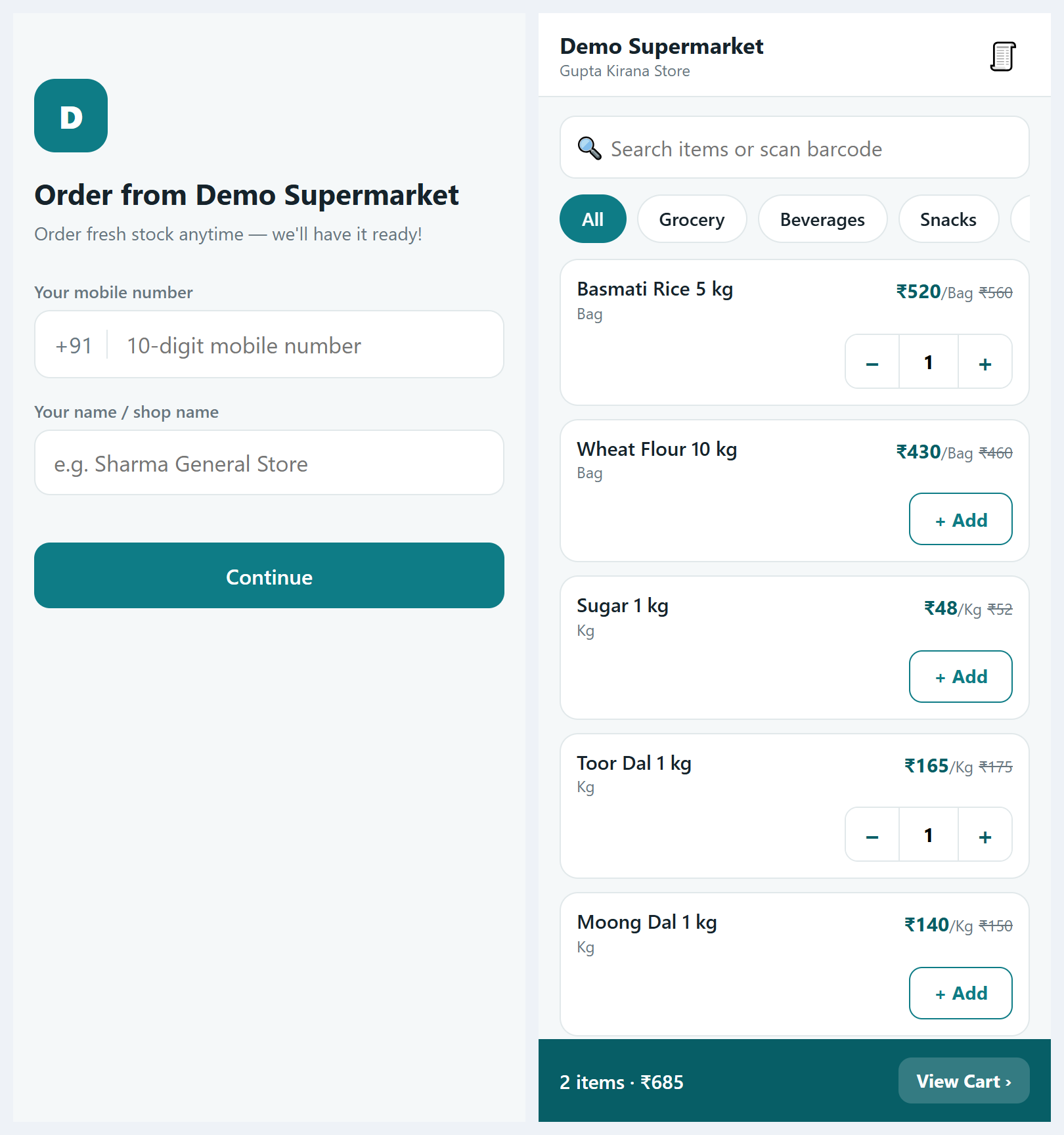
 View full size ↗
The everyday problem
Customers are more likely to use the correct ordering route when the link is accompanied by the business name and a simple explanation. Before sharing it widely, open the configured link yourself on a phone and check the destination.
A workable process
Confirm the shop identity and the expected access process. Prepare a short message explaining that the link is for sending an order request, and clarify how the business confirms availability or collection. Use the exact approved link rather than retyping a long address from memory.
A practical example
If a wholesaler serves several related shops, a customer may have more than one saved link. A message headed only Order here provides little context. Naming the supplying business helps the customer choose the intended catalogue and reduces avoidable questions.
Before you finish
Place a sample request through the link and find it in the order inbox. Agree who answers customer queries before adding the link to your usual communications or promotional material.
Try this check with your team
Open the exact shared link on a phone that has not been used for setup. Check business identity, product lookup and any required sign-in. Send the link with a short explanation of who can use it and how orders are reviewed.
What the result tells you
The test should reflect a first-time customer’s experience. If the link works only in the administrator’s existing session, resolve access and onboarding before placing it on printed material or sharing it widely.
See this workflow in Speed Plus.
Bring a sample transaction and your questions to a product demo.
Book a free demo ↗