Show where a customer’s points came from.
Review points earned, used, expired or adjusted. Use the history to explain the available balance.
Customer member record
Earn / redeem / expire / adjust entries
Explainable available points
See the screens behind the workflow.
Real screens from the Speed Plus 9 manual. Open any image to inspect the details.
 View full size ↗
02Keep a reason with a points adjustment+
 View full size ↗
Use the ledger to explain the balance.
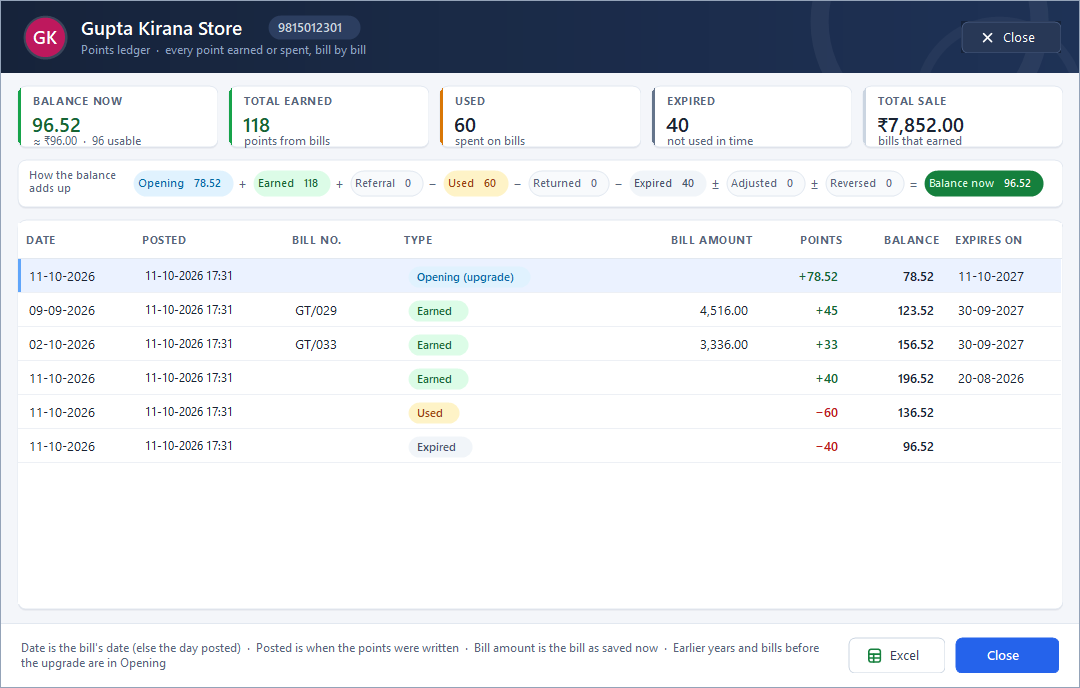
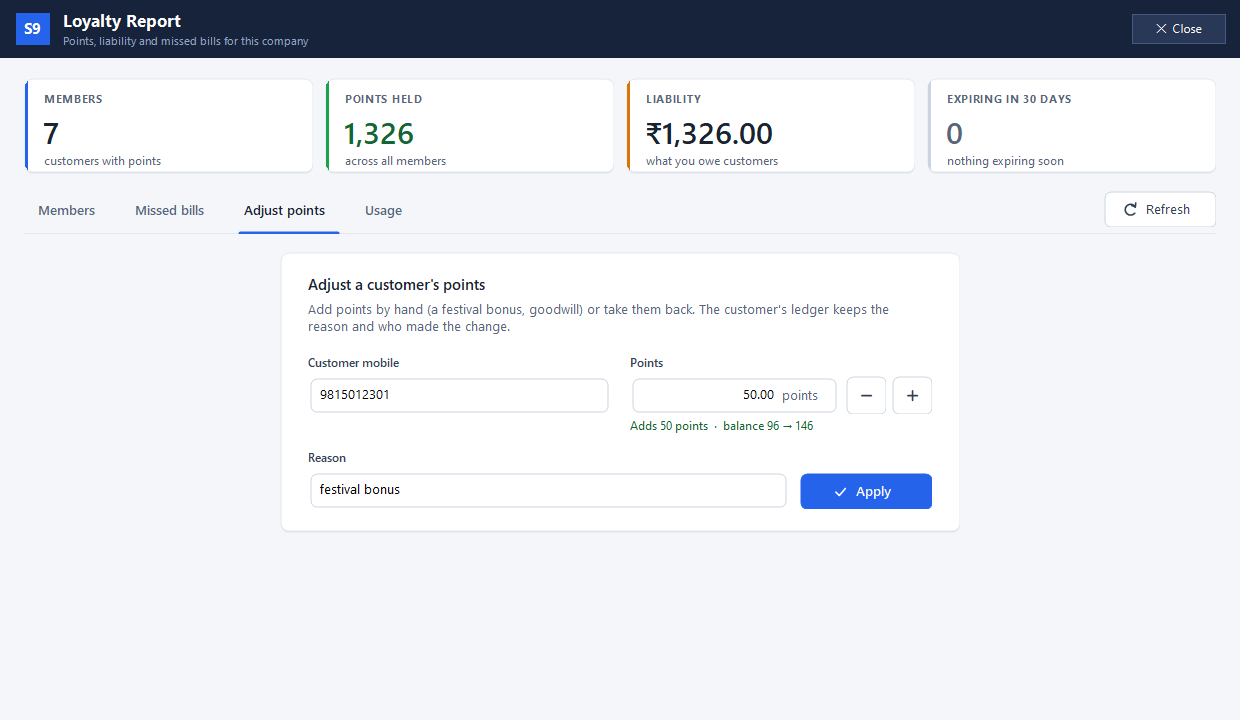
The customer points ledger separates earned, used and expired entries. The Adjust points view also shows the before-and-after balance and a reason before Apply. Review those references when resolving a customer question instead of replacing the balance with an unexplained number.
The points ledger explains the reward balance.
A customer points total is easier to trust when each change has a reason. Earning adds rewards, redemption spends them, expiry removes time-limited rewards and reversals correct the effect of changed transactions. The ledger connects those changes with their references.
Identify the member, review the period and inspect the relevant earn or redeem entry. In the newer programme, expiry belongs to earning lots and redemption uses the older eligible points first. An authorised manual adjustment should include a reason so a later customer query can be answered from the record.
How to use it.
Show where a customer’s points came from.
- 01
Find the member by name or mobile
- 02
Open the supported customer points ledger
- 03
Review the entry type, bill reference and remaining balance
What this looks like in your business.
A member asks why the balance changed after redemption. Staff review the used-points entry alongside the original earning history.
Explain a points balance with its history.
Follow the decisions as well as the clicks.
- 01
Find the member
Open Help → Loyalty Report and search the Members tab by mobile number or name. Check that it is the customer whose balance you need to discuss.
- 02
Open the customer ledger
Double-click the member or use Customer ledger. Read the earning, redemption and expiry entries in order to understand how the current balance arose.
- 03
Investigate an unexpected balance
Use Missed bills to inspect possible posting issues. The documented repair reviews eligible bills from the recent period up to yesterday and does not send customer messages.
- 04
Keep corrections accountable
An authorised SUPER USER can use Adjust points with a signed quantity and a reason. The ledger retains the reason and user, so a correction remains explainable.
Based on User Manual 2026 · 21.7. Screen names and availability can vary by installed version.
See the workflow in action.
Give Customers a Reason to Return! 🎁 | Speed Plus 9 Loyalty Points
SolverTeam tutorial for this topic. Screens and options can vary by installed version.
Open on YouTube ↗Good questions.
Clear answers.
Choose the workflow that fits your business and confirm its setup in a demonstration.
Why can the current balance differ from the total points ever earned?
Some points may have been redeemed, expired or reversed. Review the sequence of entries rather than comparing the current balance with gross earning alone; confirm the ledger version used by your installation.
What setup should I confirm?
The newer ledger workflow differs from legacy loyalty reports. Confirm the active engine and version for your company.
Build a reason for customers to return
See how a purchase earns points, how redemption works and where the history lives.
- 01Regular POSRead guide →
- 02Loyalty pointsRead guide →
- 03Customer points ledgerYou are here
- 04WhatsApp invoice sharingRead guide →
What else can help?
Loyalty points
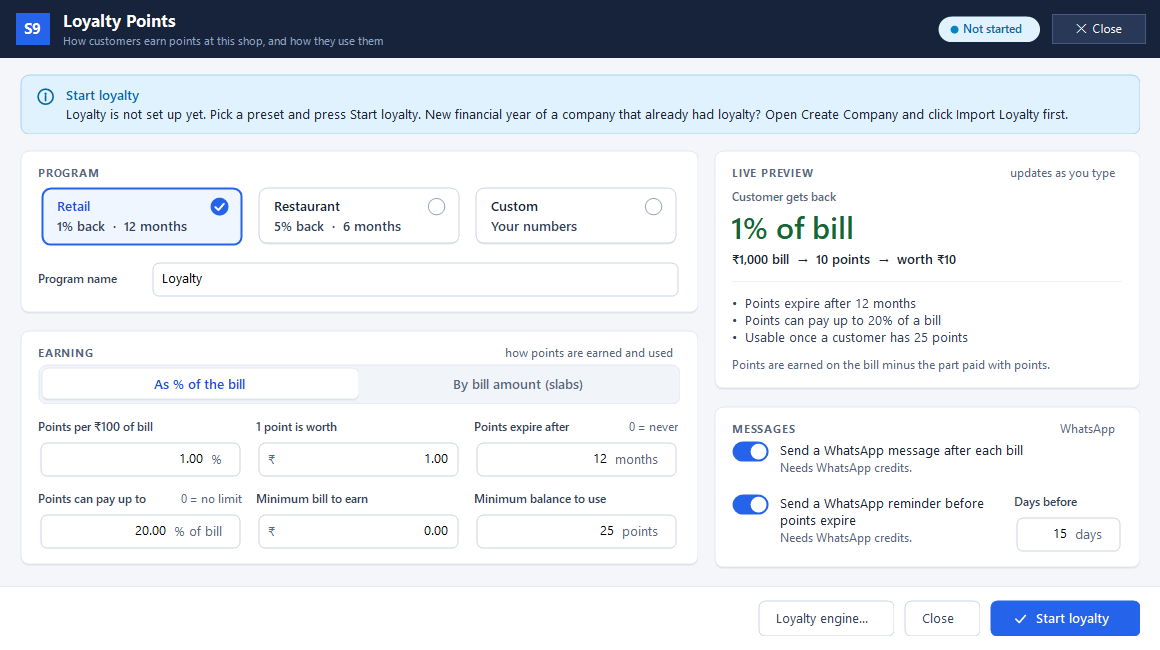
Reward customers when they buy again.
Read the guide →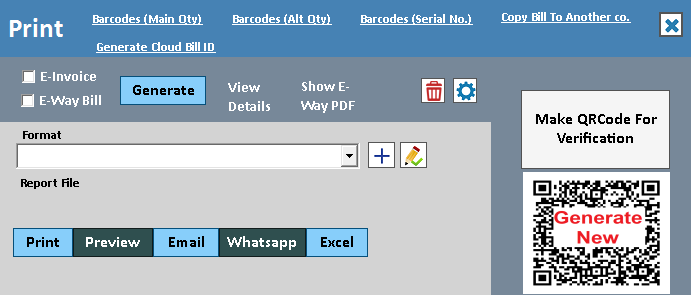
WhatsApp invoice sharing
Put a useful invoice in the customer's chat.
Read the guide →Telegram transaction alerts
Keep an eye on business activity from Telegram.
Read the guide →See it with a sample from your business.
Bring a sample bill or item list. We’ll show you the steps and answer your questions.