Send stock. Confirm what arrived.
Record stock sent from head office to a branch, then compare it with the quantity the branch received.
Choose From and To, then add items and quantities
Save the transfer and count the delivery at the branch
Mark received and review any shortage at head office
See the screens behind the workflow.
Real screens from the Speed Plus 9 manual. Open any image to inspect the details.
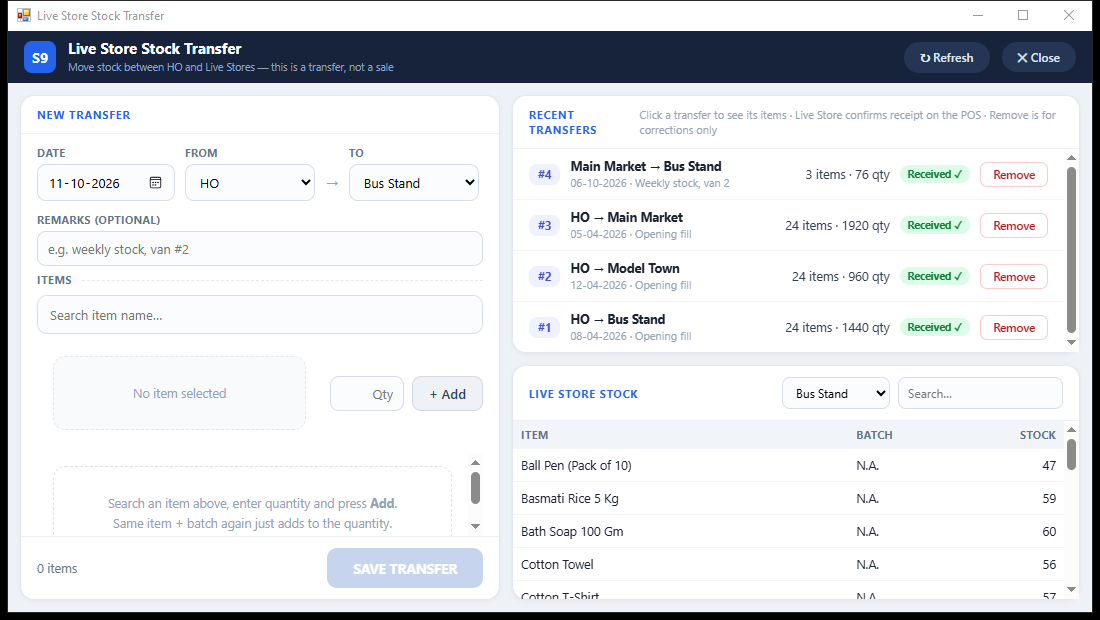 View full size ↗
What to check on screen
Follow the steps in the matching product screen. Adjust to received qty changes the sent figures. Use it after checking the shortage, not simply to make the numbers match.
Send stock. Confirm what arrived.
A transfer changes where goods are kept. It does not record a customer sale or change the company’s total stock. Choose the sending and receiving locations, add the items and batches, and save the transfer.
At the branch, staff count the delivery and mark it received. If fewer units arrived, the shortage stays visible at head office. Check the difference before adjusting the transfer. Branch stock is shown for information; it does not automatically block billing.
How to use it.
Send stock. Confirm what arrived.
- 01
Choose From and To, then add items and quantities
- 02
Save the transfer and count the delivery at the branch
- 03
Mark received and review any shortage at head office
What this looks like in your business.
Head office sends 50 packs but the branch counts 48. The transfer shows the difference so the team can check the delivery before changing the records.
See the workflow in action.
Sent 50, Received 48? Track Branch Stock Transfers | Speed Plus 9 Web POS | www.solversolutions.in
SolverTeam tutorial for this topic. Screens and options can vary by installed version.
Open on YouTube ↗Good questions.
Clear answers.
Choose the workflow that fits your business and confirm its setup in a demonstration.
Does this create a sale between branches?
No. It records a stock movement within the company. Customer sales are recorded through billing.
What setup should I confirm?
Adjust to received qty changes the sent figures. Use it after checking the shortage, not simply to make the numbers match.
What else can help?
Farata mobile orders
Collect the order where the conversation happens.
Read the guide →
Farata bills and stock sync
Keep received bills close to the mobile workflow.
Read the guide →
Farata mobile print and share
Share a mobile document with a clear purpose.
Read the guide →See it with a sample from your business.
Bring a sample bill or item list. We’ll show you the steps and answer your questions.