Keep received bills close to the mobile workflow.
Use the supported Farata connection to refer to received bills and coordinate the related stock workflow. Review the transaction before accepting changes into business records.
Connected business selection
Bill or stock lookup
Referenced information for the next action
See the screens behind the workflow.
Real screens from the Speed Plus 9 manual. Open any image to inspect the details.
 View full size ↗
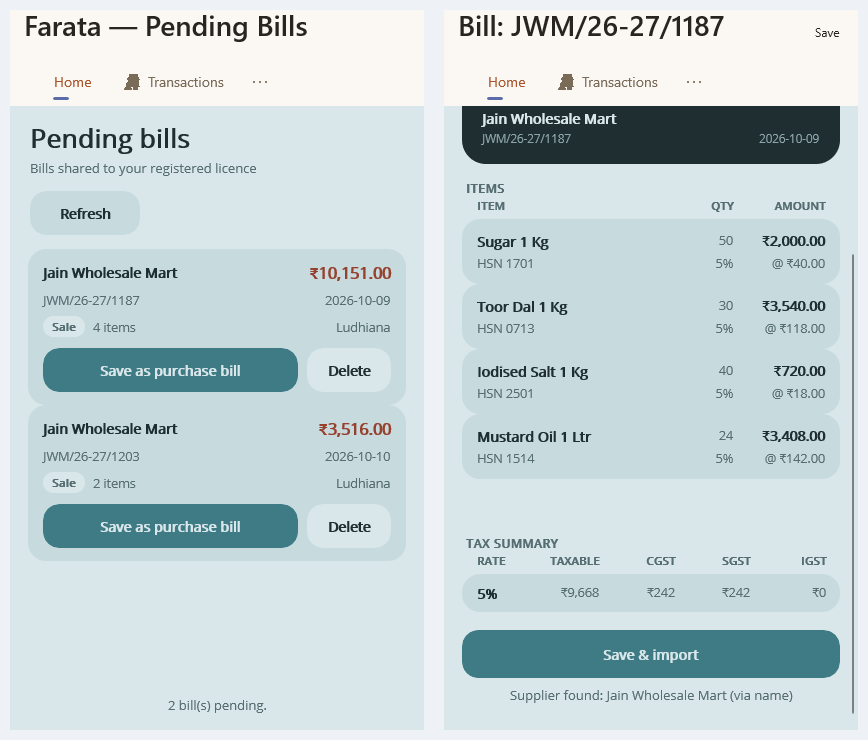
Distinguish a received supplier bill from a stock lookup.
The screenshot shows Farata Pending Bills and an invoice preview. It explains document receipt and review, not a live stock enquiry. For phone-to-PC integration, Pull and Send are separate actions; verify the connection mode and the point at which your data is updated.
A mobile view should tell you which business record you are reading.
Connected bills and stock access help staff refer to information while away from the desktop. The value is being able to identify the relevant bill or item and carry a useful reference back into the business conversation.
Open the configured Farata account, select the relevant business and inspect a known bill and item. Compare the information with Speed Plus, including the date and update behaviour. Use the supported retailer bill workflow when a received supplier bill is intended to become a local purchase.
How to use it.
Keep received bills close to the mobile workflow.
- 01
Connect the intended business and app account
- 02
Find and review the supported bill details
- 03
Complete the configured stock or purchase action
What this looks like in your business.
A retailer checks a supplier bill from the connected mobile workflow before finalising receipt into stock.
See the workflow in action.
Farata Send Data to PC: Why the Phone Shows Zero After Sending | Speed Plus 9
SolverTeam tutorial for this topic. Screens and options can vary by installed version.
Open on YouTube ↗Good questions.
Clear answers.
Choose the workflow that fits your business and confirm its setup in a demonstration.
Why might a mobile stock figure differ from the counter?
Check the selected company, location and last successful update, as well as transactions posted since then. Establish the connection behaviour before treating the difference as a stock error.
What setup should I confirm?
Sync scope and direction depend on the configured workflow. Do not assume every phone action is an immediate desktop stock change.
What else can help?
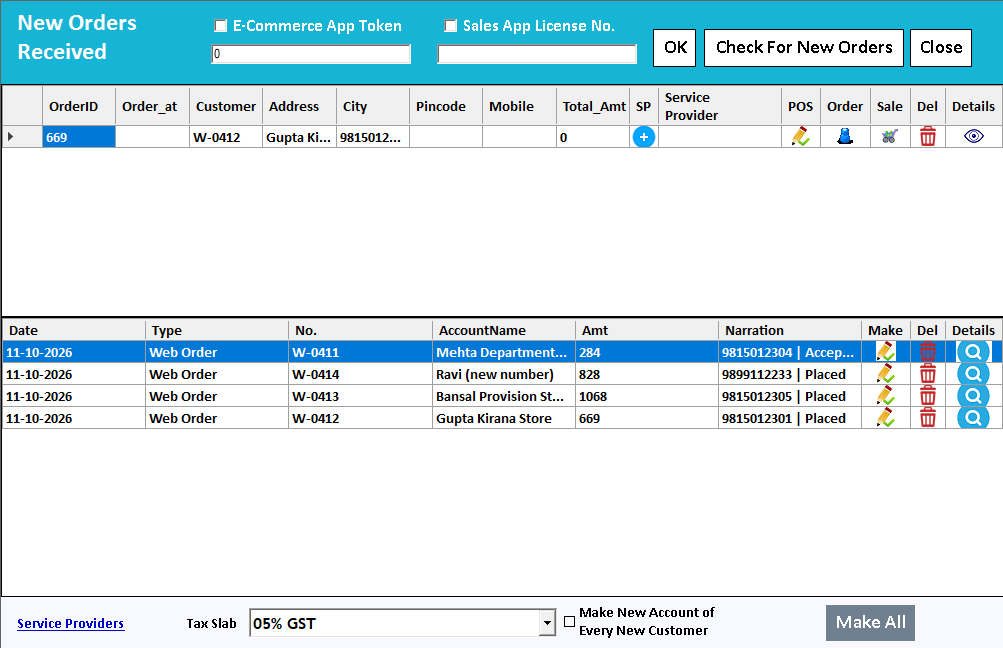
Farata mobile orders
Collect the order where the conversation happens.
Read the guide →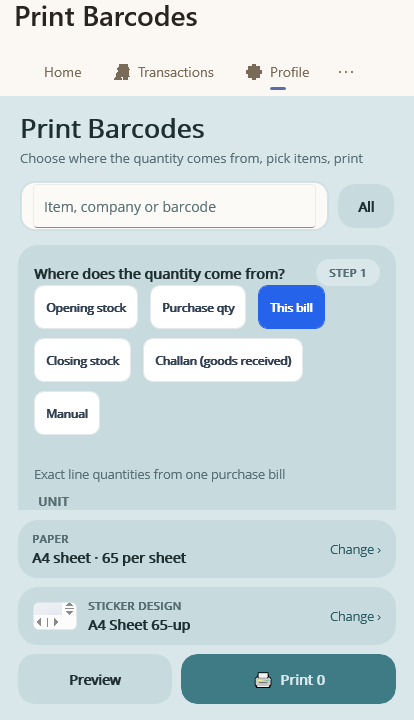
Farata mobile print and share
Share a mobile document with a clear purpose.
Read the guide →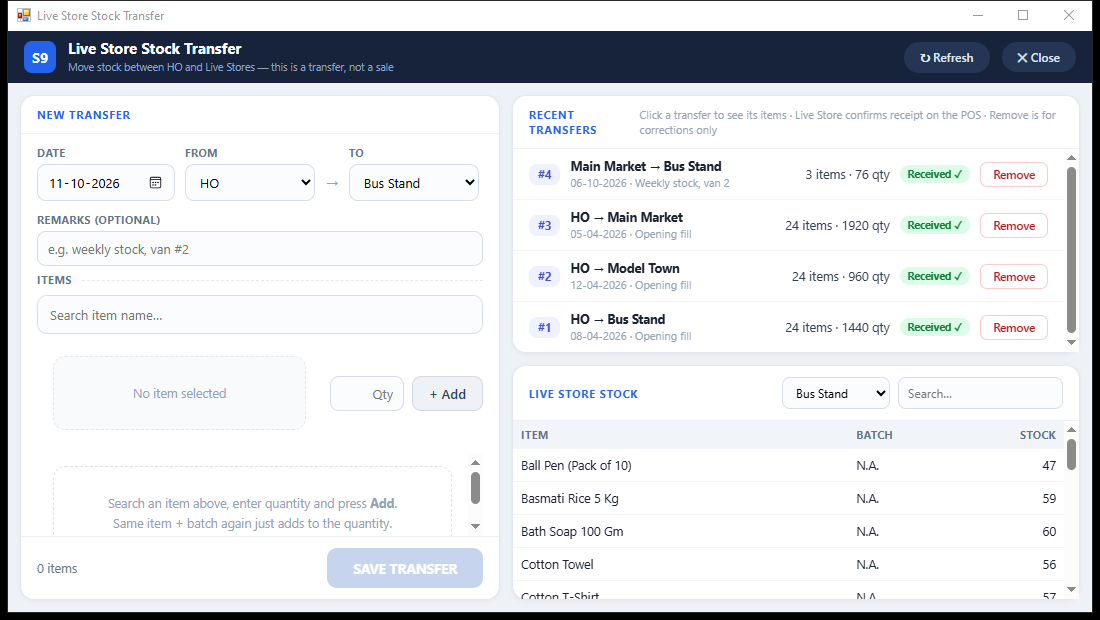
Branch stock transfers
Send stock. Confirm what arrived.
Read the guide →See it with a sample from your business.
Bring a sample bill or item list. We’ll show you the steps and answer your questions.