Reward customers when they buy again.
Set how customers earn points and how they can spend them. Use the customer’s mobile number to find their balance at billing.
Illustrative reward on ₹2,000
at a 1% earning rate
See the screens behind the workflow.
Real screens from the Speed Plus 9 manual. Open any image to inspect the details.
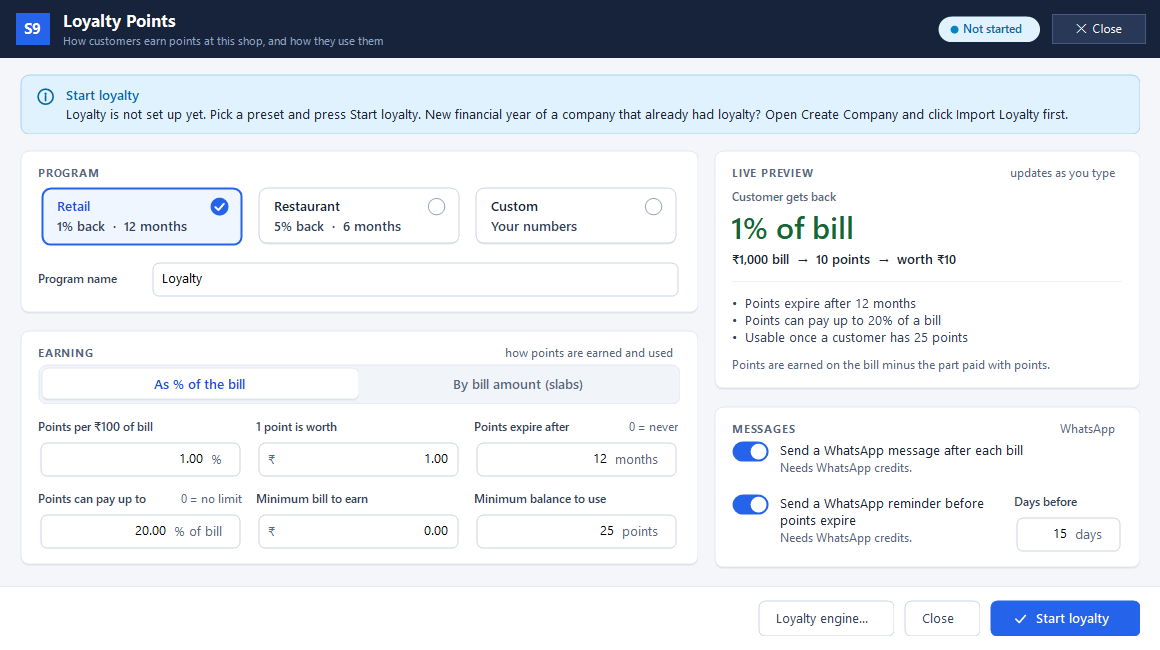 View full size ↗
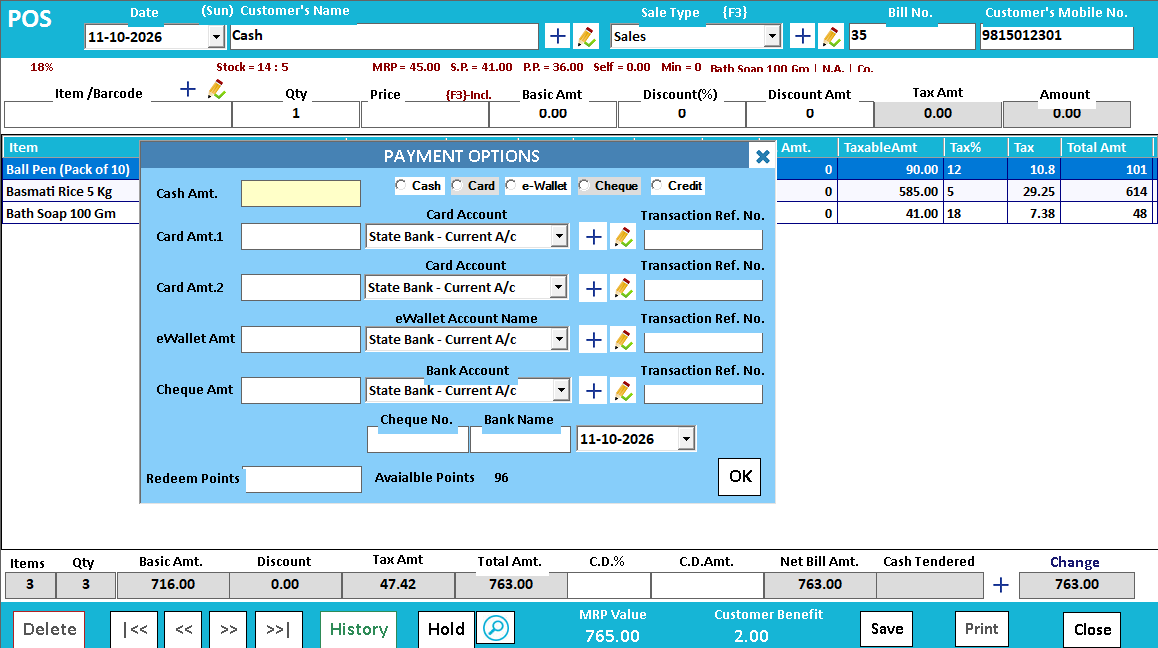
02Review payment and available loyalty points+
 View full size ↗
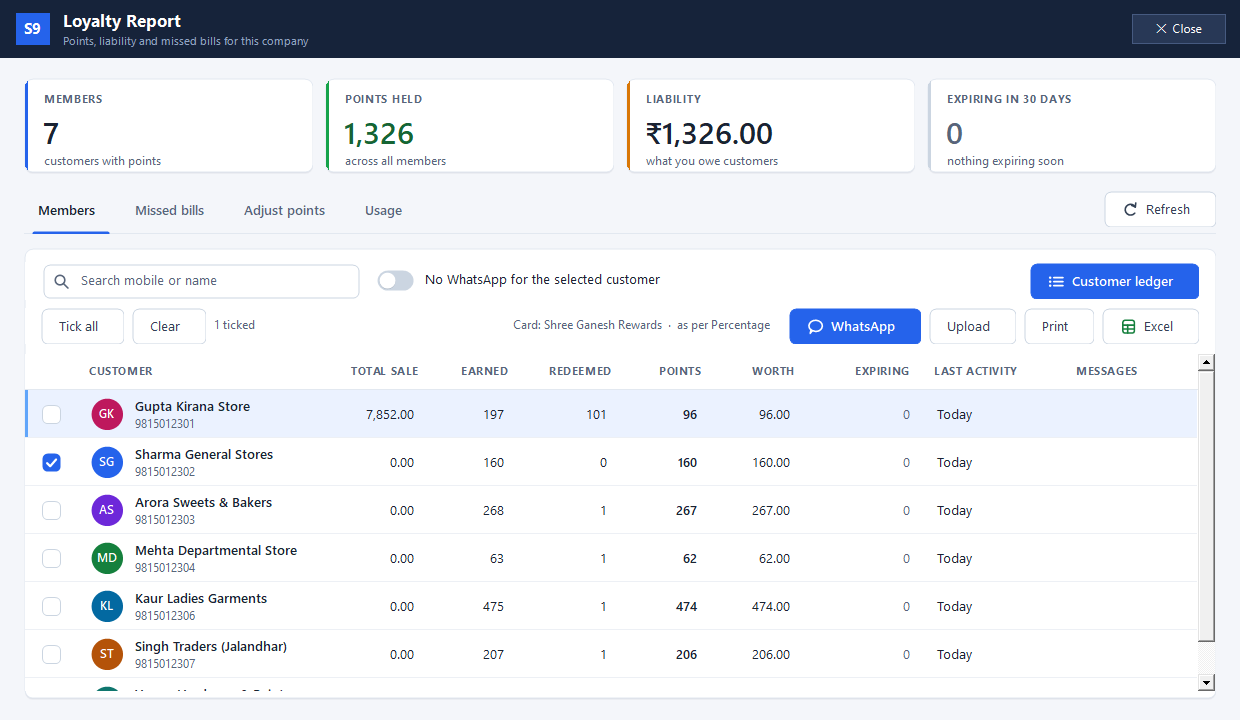
03Review your loyalty members in one place+
 View full size ↗
Start with the programme, then follow one member.
The 2026 manual places programme setup under Help → Loyalty Points and the member view under Help → Loyalty Report. The setup includes presets and a live preview. During billing, identify the customer and inspect the available points in the payment panel. Use the member report to review the resulting earning and redemption.
Reward the purchase now. Make the next visit worthwhile.
A loyalty programme creates a separate points balance for an identified customer. The earning rule decides what a paid purchase earns; the redemption rule decides how much of a later bill can be settled with points. Keeping both rules clear protects the customer promise and the business margin.
In the newer documented ledger-based programme, the mobile number identifies the member and points are earned on the eligible paid amount, excluding the portion redeemed with points. Point value, minimum redemption, maximum redemption share and expiry are configurable. At billing, review the available eligible balance instead of promising that every point can always be spent at once.
How to use it.
Reward customers when they buy again.
- 01
Set the earning rule, point value and redemption limits
- 02
Record the customer mobile number on the sale
- 03
Review the available balance and eligible redemption at payment
What this looks like in your business.
With an illustrative 1% earning rule, an eligible paid amount of ₹2,000 earns 20 points. Actual results follow your configured programme.
Set the promise. Earn it. Redeem it.
Follow the decisions as well as the clicks.
- 01
Set the programme as the owner
Open Help → Loyalty Points as SUPER USER. Choose the preset or custom programme, then review earning, point value, expiry, minimum balance and redemption share in the live preview.
- 02
Identify the member on the sale
Enter the customer’s mobile number and review the bill’s loyalty setting. In the documented programme, eligible points are recorded when the sale is saved.
- 03
Use eligible points on a later visit
On a supported redemption screen, read Available Points and enter Redeem Points. Collect the remainder through the selected payment modes. Balance, minimum and maximum-share rules determine what can be used.
- 04
Review the member’s history
Open Help → Loyalty Report and inspect the member ledger. Earning, redemption, expiry and return adjustments explain the balance better than a single total.
Based on User Manual 2026 · 21.3–21.7. Screen names and availability can vary by installed version.
A small example.
A clearer understanding.
Change the sample values and explore how this workflow helps.
Interactive illustration · not the softwareSee the workflow in action.
Give Customers a Reason to Return! 🎁 | Speed Plus 9 Loyalty Points
SolverTeam tutorial for this topic. Screens and options can vary by installed version.
Open on YouTube ↗Good questions.
Clear answers.
Choose the workflow that fits your business and confirm its setup in a demonstration.
What happens when points expire or a sale is returned?
The newer programme tracks earning, redemption, expiry and reversals in a points ledger, with older eligible points used first. Review the relevant entries after a return. Legacy installations may use an older system, so confirm which programme your company runs.
Can points be redeemed from every billing screen?
The 2026 manual describes redemption on POS, Sale and Touch KOT. Touch POS earns points but has no Redeem Points box in the documented screen. Choose the appropriate billing route when redemption is needed.
What setup should I confirm?
Programme, expiry and ledger behaviour depend on the installed version. WhatsApp messages require a configured sender and available service credit.
Build a reason for customers to return
See how a purchase earns points, how redemption works and where the history lives.
- 01Regular POSRead guide →
- 02Loyalty pointsYou are here
- 03Customer points ledgerRead guide →
- 04WhatsApp invoice sharingRead guide →
What else can help?
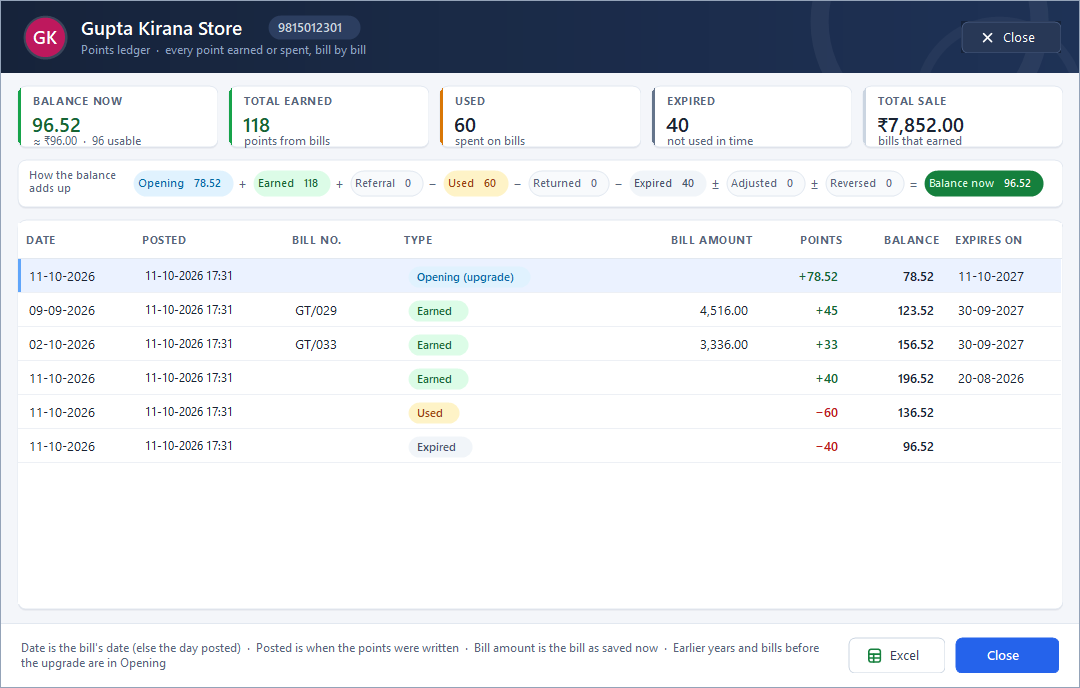
Customer points ledger
Show where a customer’s points came from.
Read the guide →
WhatsApp invoice sharing
Put a useful invoice in the customer's chat.
Read the guide →Telegram transaction alerts
Keep an eye on business activity from Telegram.
Read the guide →See it with a sample from your business.
Bring a sample bill or item list. We’ll show you the steps and answer your questions.