Review connected supplier bills before adding stock.
Use the supported connected bill workflow to receive supplier transaction information. Match incoming item references with the business catalogue before accepting the resulting entry.
Connected supplier document
Receiver mapping and checks
Local purchase and stock records
See the screens behind the workflow.
Real screens from the Speed Plus 9 manual. Open any image to inspect the details.
 View full size ↗
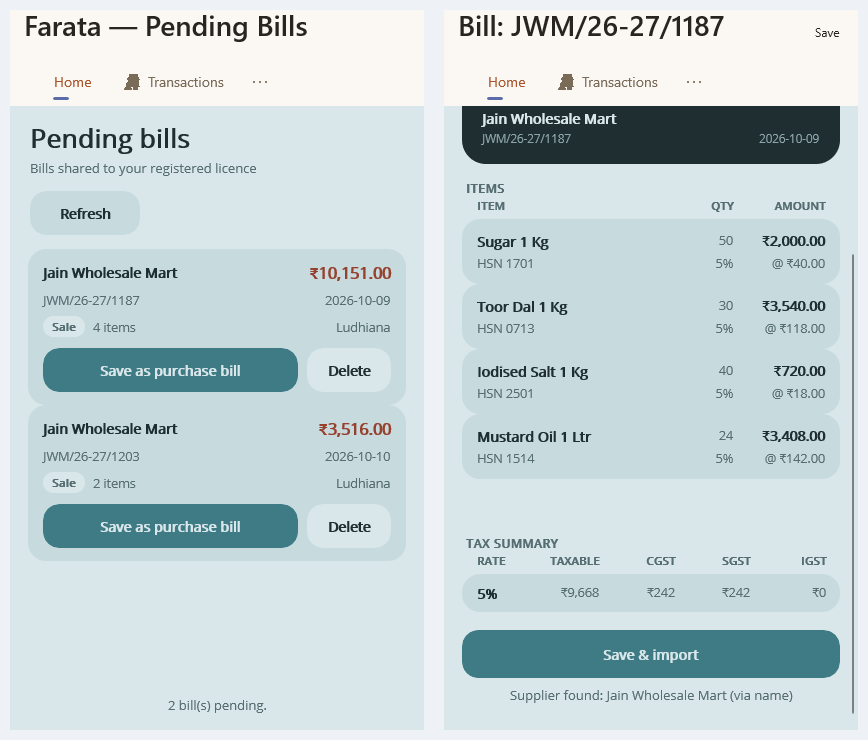
Review the bill before Save & import.
Farata Pending Bills presents supplier documents received through Speed Connect. Open the invoice, inspect its items and tax summary, and then use the supported Save & import action. A registered connection is required; a standalone demo company is not evidence that supplier exchange is active.
Connected billing still needs the receiving business to understand the goods.
A connected supplier-bill workflow can reduce repeated entry when a supplier and retailer exchange supported transaction data. The receiving business must still connect the supplier product description with its own item, unit and stock records.
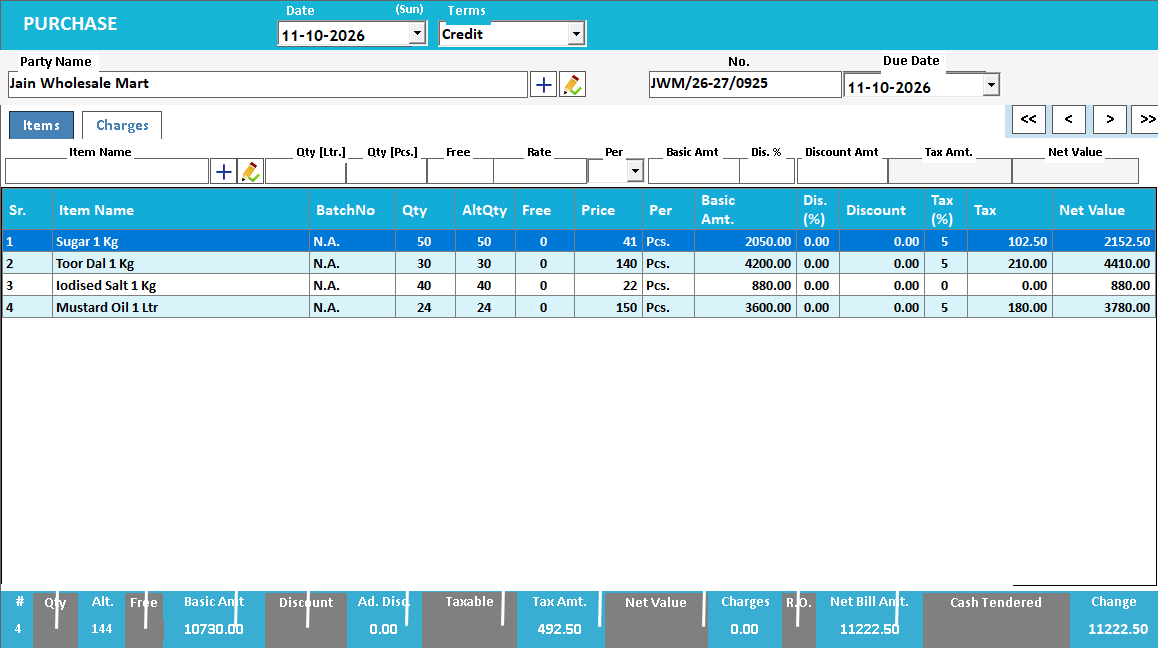
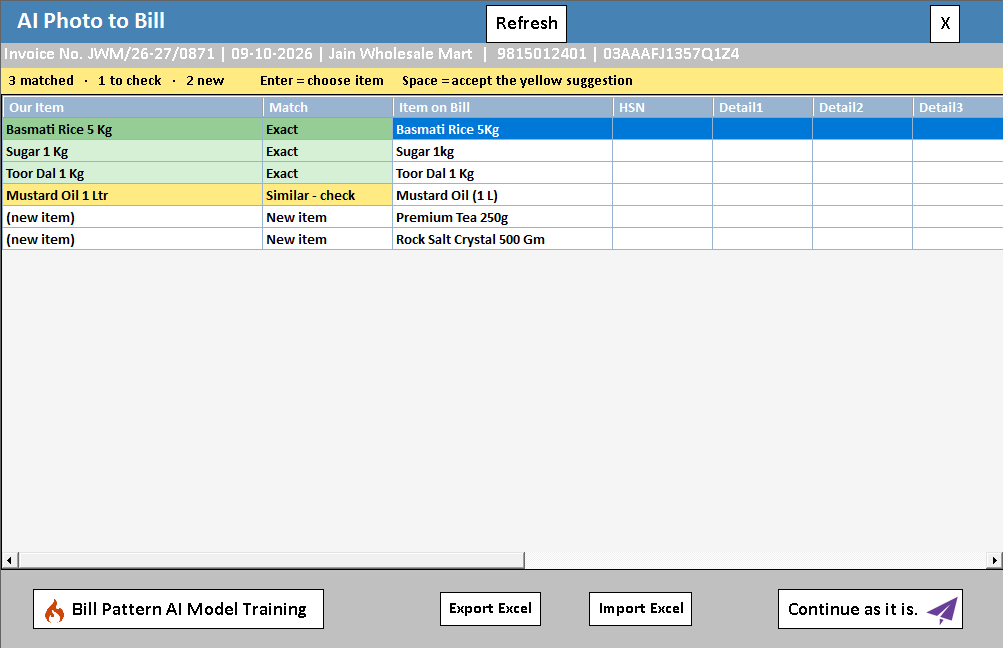
Set up the supported business connection, locate the received document and review its mapping. Check the supplier reference, pack conversion and any unmatched products. Once accepted through the purchase workflow, inspect the stock and supplier balance to confirm the intended result.
How to use it.
Review connected supplier bills before adding stock.
- 01
Connect the supported supplier workflow
- 02
Review the received bill and map item references
- 03
Check quantities and totals before completing import
What this looks like in your business.
A retailer receives a bill from a connected supplier and verifies that the supplier product code matches the retailer item.
See the workflow in action.
Stop Typing Supplier Bills: Import Them Straight Into Farata | Speed Connect
SolverTeam tutorial for this topic. Screens and options can vary by installed version.
Open on YouTube ↗Good questions.
Clear answers.
Choose the workflow that fits your business and confirm its setup in a demonstration.
Why can a connected bill still need item matching?
Two businesses can name or group the same product differently. Mapping establishes which local stock record should change; without it, an imported description can create duplicates or update the wrong item.
What setup should I confirm?
Availability depends on both businesses and the configured integration. It is not universal import from every supplier system.
What else can help?
See it with a sample from your business.
Bring a sample bill or item list. We’ll show you the steps and answer your questions.