Read a supplier bill from a photo or PDF.
Let AI prepare the purchase lines. Match the products and check quantities, rates and totals before saving.
See the screens behind the workflow.
Real screens from the Speed Plus 9 manual. Open any image to inspect the details.
 View full size ↗
02Resolve an uncertain item before importing+
 View full size ↗
03Keep the supplier reference with the purchase+
 View full size ↗
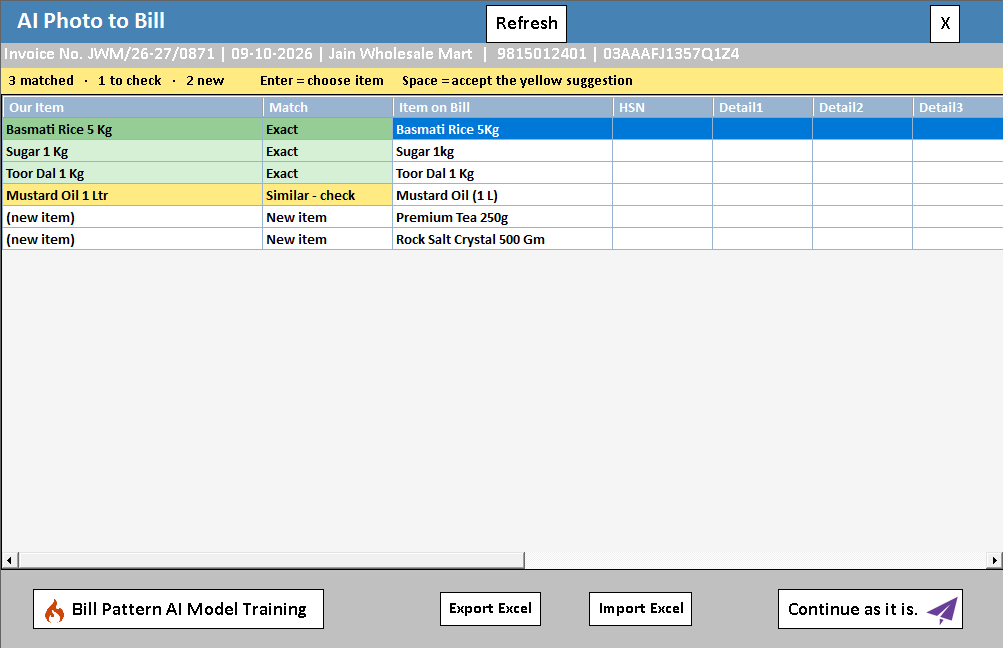
Our Item and Match are the key review columns.
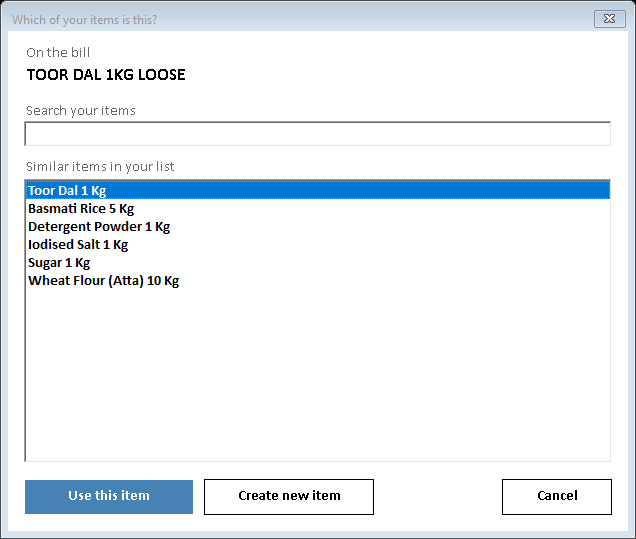
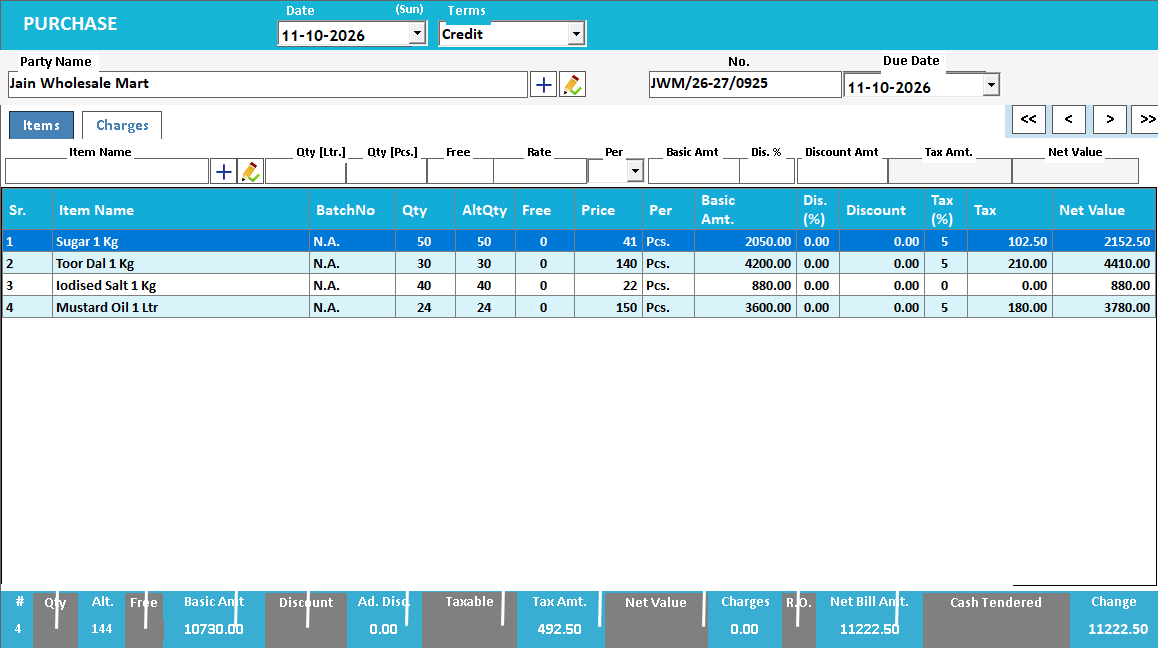
The AI Photo to Bill screen places the item printed on the supplier bill beside your own item, with match states such as Exact, Similar and New item. For an uncertain line, the item-choice window lets you select an existing product or create a new one. Continue opens the purchase for further review; inspect quantities, rates, batch, expiry and MRP before saving.
AI prepares a draft. Your review makes it a reliable purchase.
A supplier photo or PDF contains document text, not your business item records. AI-assisted import reads the document and proposes purchase lines. The useful saving is reduced retyping; the important decisions remain which item the supplier meant, which unit was used and whether the extracted numbers agree.
Capture the complete readable document, inspect every proposed item match and compare quantities, rates, discounts and totals with the source. A supplier label such as Tea 500 may need mapping to your own precise product. Review ambiguous lines before saving, then confirm the resulting stock and supplier entry.
How to use it.
Read a supplier bill from a photo or PDF.
- 01
Capture a clear image of the complete bill
- 02
Review extracted supplier, items, quantities and rates
- 03
Match items and compare totals before saving the purchase
What this looks like in your business.
A supplier sends a multi-line bill photo. Staff review the extracted rows, correct a misread quantity and then complete the entry.
From supplier document to reviewed purchase.
Follow the decisions as well as the clicks.
- 01
Choose the source document
Open Entries → Purchase, then Import → From PDF or From Image. Keep Import As set to Purchase and select a clear, complete supplier document.
- 02
Resolve the item matches
Compare Item on Bill with Our Item. Confirm each yellow Similar - check row, or open the item picker to select the correct master. Do not create a second item just because the supplier uses a different spelling.
- 03
Review the commercial details
Compare quantity, free quantity, rate, batch, expiry and MRP with the source. A plausible total alone cannot confirm that every line was read correctly.
- 04
Continue, check and save
Continue opens the prepared Purchase. Inspect the supplier reference, lines and total once more before Save. The review screen itself has not posted the purchase to your books.
Based on User Manual 2026 · 36.1–36.3. Screen names and availability can vary by installed version.
A small example.
A clearer understanding.
Change the sample values and explore how this workflow helps.
Interactive illustration · not the softwareSee the workflow in action.
Turn Bill Photos & PDFs into Purchase Entries! | Speed Plus 9 AI Photo to Bill
SolverTeam tutorial for this topic. Screens and options can vary by installed version.
Open on YouTube ↗Good questions.
Clear answers.
Choose the workflow that fits your business and confirm its setup in a demonstration.
Can I skip review when the image is clear?
No. Clear images help recognition, but pack sizes, abbreviations and supplier item names still require interpretation. Use AI as a starting point and accept a line only after checking its meaning and values.
What setup should I confirm?
AI recognition can make mistakes. Image clarity, handwriting, layout and item mapping affect results; human review remains essential.
Bring a supplier bill into stock
Understand the review that sits between a bill photo and your purchase records.
- 01AI photo bill importYou are here
- 02Purchase entryRead guide →
- 03Batch trackingRead guide →
- 04Stock verification and journalsRead guide →
What else can help?
See it with a sample from your business.
Bring a sample bill or item list. We’ll show you the steps and answer your questions.