Make your shop easy to browse.
Group your online items under clear customer-friendly categories while keeping the original software groups.
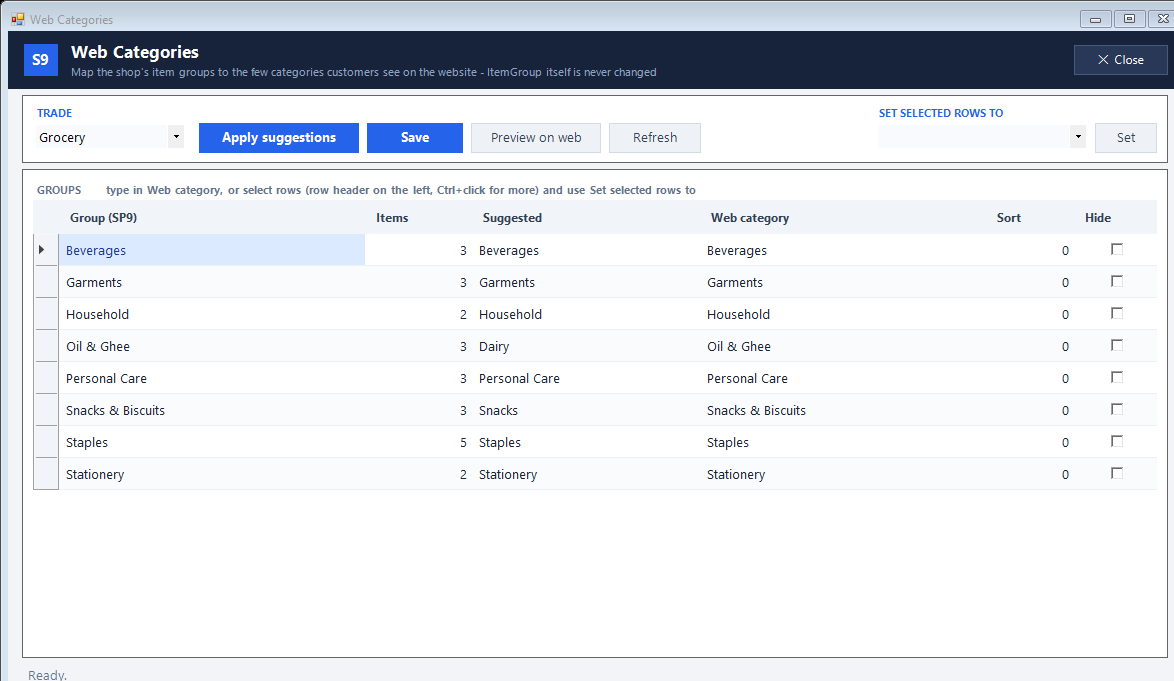
Review the suggested website categories
Correct names, order and hidden groups
Save and browse the customer-facing store
See the screens behind the workflow.
Real screens from the Speed Plus 9 manual. Open any image to inspect the details.
 View full size ↗
What to check on screen
Follow the steps in the matching product screen. Review the Hide column before saving so saleable items are not left out. Category suggestions need checking for your particular shop.
Make your shop easy to browse.
Your accounts may contain many similar item groups. Customers should not have to understand those internal names. Web Categories maps them to a simpler set of website categories without changing the item groups used by your reports.
Choose the trade and review Apply suggestions. Fix the category names, sort order and Hide settings, then Save. Use Preview on web to check the result. If you run suggestions again, choose whether to replace existing choices or fill only empty mappings.
How to use it.
Make your shop easy to browse.
- 01
Review the suggested website categories
- 02
Correct names, order and hidden groups
- 03
Save and browse the customer-facing store
What this looks like in your business.
Rice, RICE and Rice 5kg can appear under one customer-facing Rice category. The original groups can remain separate inside the software.
See the workflow in action.
Too Many Categories? Organise Your Online Store | Speed Plus 9
SolverTeam tutorial for this topic. Screens and options can vary by installed version.
Open on YouTube ↗Good questions.
Clear answers.
Choose the workflow that fits your business and confirm its setup in a demonstration.
Will changing a Web Category change my reports?
No. The manual states that the original item groups stay unchanged. The mapping controls how customers browse the web store.
What setup should I confirm?
Review the Hide column before saving so saleable items are not left out. Category suggestions need checking for your particular shop.
What else can help?
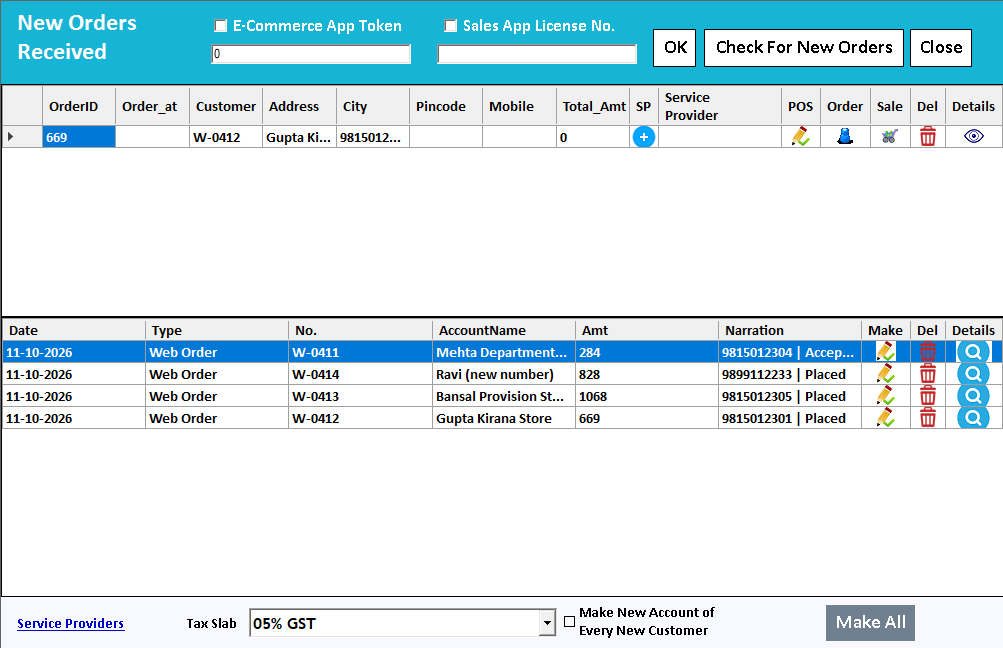
Farata mobile orders
Collect the order where the conversation happens.
Read the guide →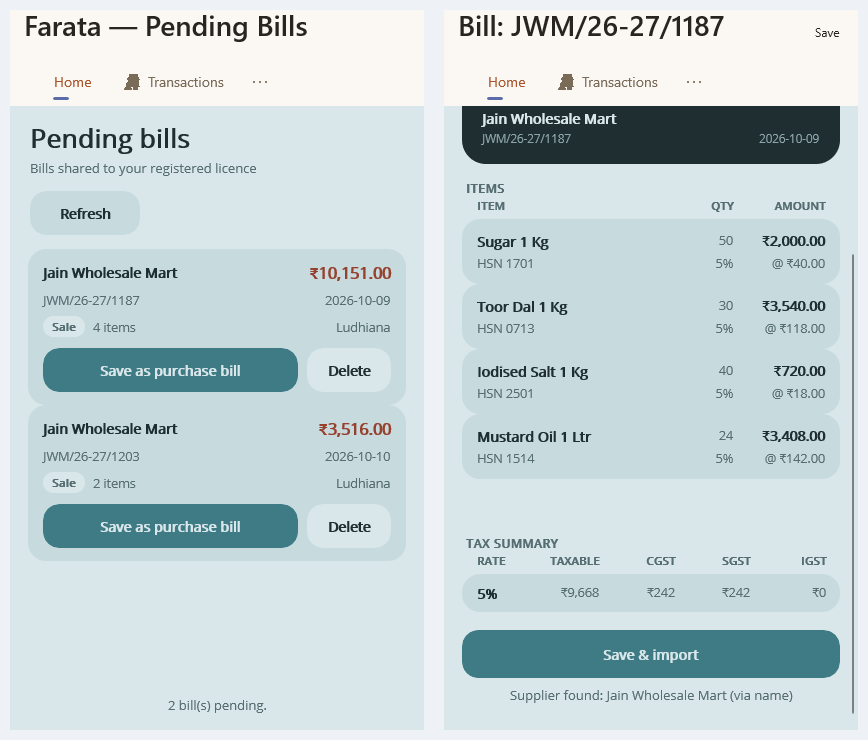
Farata bills and stock sync
Keep received bills close to the mobile workflow.
Read the guide →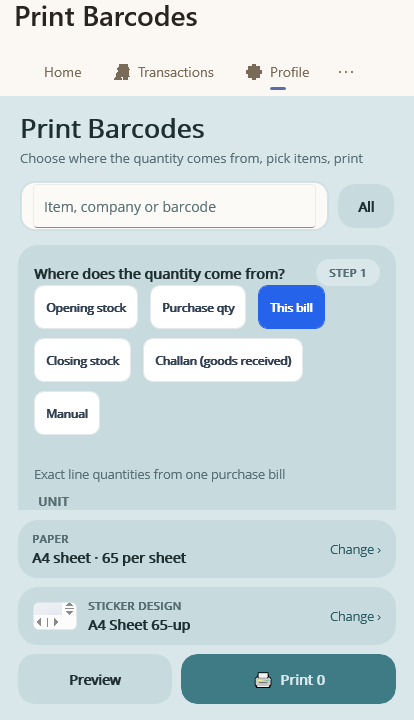
Farata mobile print and share
Share a mobile document with a clear purpose.
Read the guide →See it with a sample from your business.
Bring a sample bill or item list. We’ll show you the steps and answer your questions.