Make the bill. Keep stock and accounts updated.
Create cash or credit bills, choose the right invoice type, and check items, prices and tax before saving.
Customer + items
Review the invoice
Stock + sale + account record
See the screens behind the workflow.
Real screens from the Speed Plus 9 manual. Open any image to inspect the details.
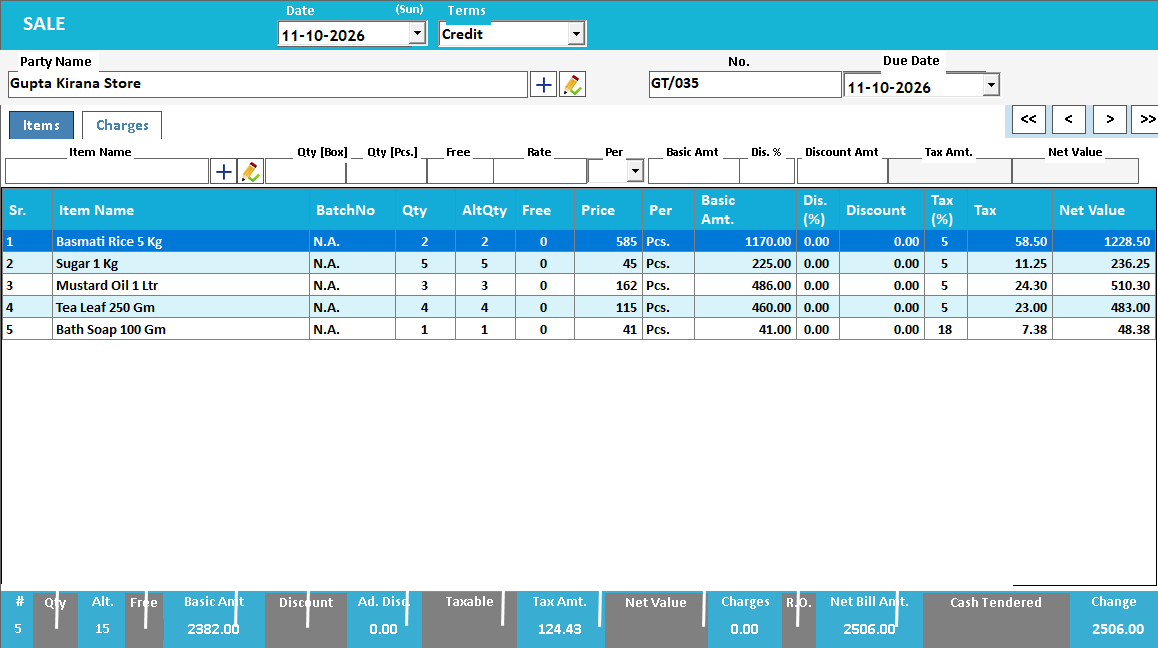 View full size ↗
02Choose how this invoice type behaves+
 View full size ↗
03Review the sales behind the day+
 View full size ↗
Choose the sale type before entering the basket.
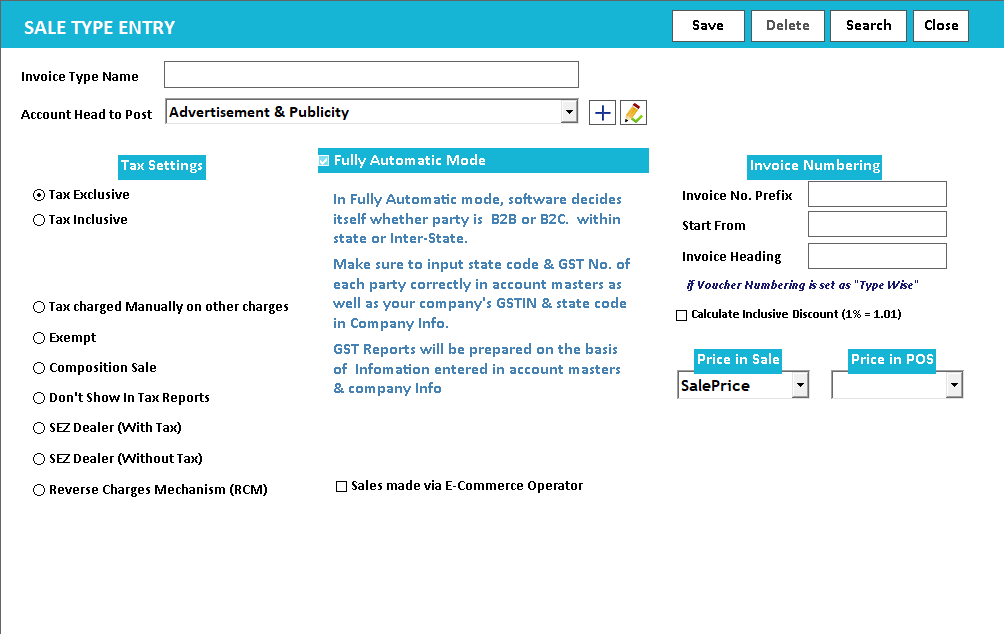
The Sale Type screen controls the invoice’s tax treatment, numbering and the price used by Sale and POS. In the sale entry, review Cash or Credit terms and the party, then add items. The line grid shows quantity, rate, tax and net value together, which makes it easier to inspect the calculation before saving.
A sale connects three parts of your business.
A sales invoice records what the customer bought, how the amount was calculated and who owes or paid it. Item lines belong to inventory; the customer and payment belong to accounts; tax and document details belong to the invoice. Treating these as one transaction makes a later stock or balance question easier to explain.
Choose the customer and invoice type, add the correct items and units, then review quantity, rate, discount and the configured tax treatment. A cash sale and a credit sale may contain the same products but leave different account balances. Reprinting a saved invoice should reuse its reference rather than create another sale.
How to use it.
Make the bill. Keep stock and accounts updated.
- 01
Select the customer and invoice type
- 02
Add items and review quantities, rates and tax
- 03
Save the bill and check its printed output
What this looks like in your business.
A retailer sells three different products. The invoice keeps each line visible while the customer receives one clear document.
Build the invoice, then follow the saved record.
Follow the decisions as well as the clicks.
- 01
Choose how the customer will pay
Start at Sale → New. Choose Cash for immediate payment or Credit for a customer who will pay later. A credit sale needs the correct party account so its balance can be followed.
- 02
Choose the Invoice Type deliberately
The selected type controls the item price level, tax-included or tax-excluded behaviour, invoice numbering and series. Review the type before entering the basket, especially when the same shop sells at retail and wholesale prices.
- 03
Add and review the lines
Find an item by name, part number, % search or barcode. Check quantity, rate and net value. Review freight, labour, discount and narration before saving; the item grid and final total should describe the same agreed sale.
- 04
Save, print and inspect the result
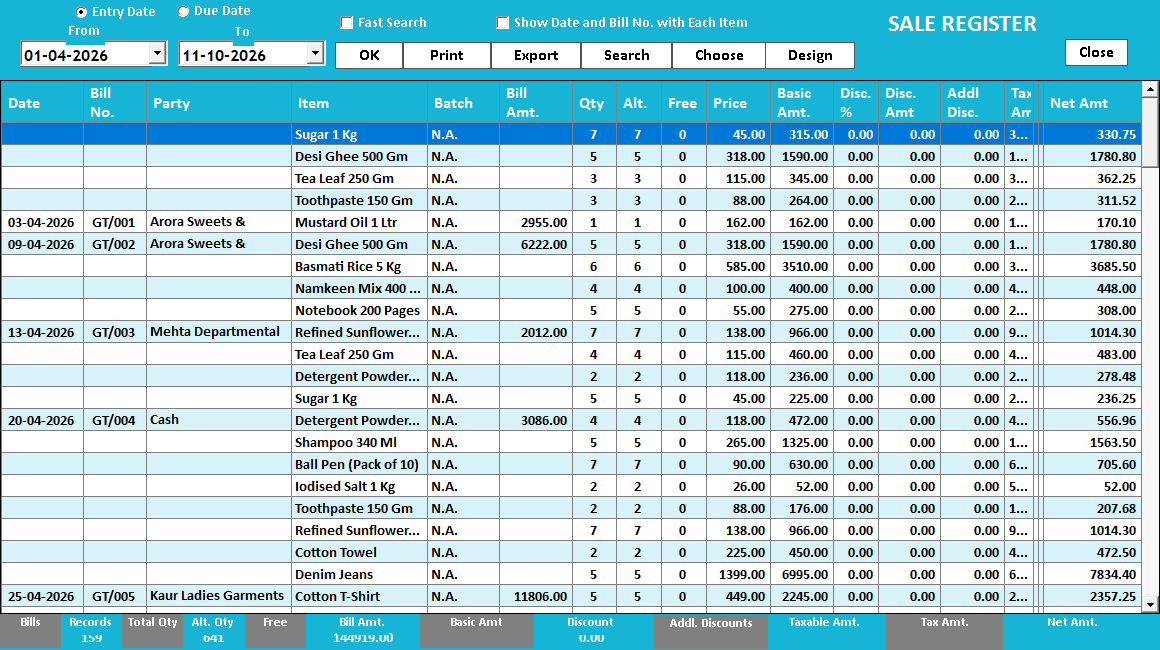
Save the bill and preview the chosen print format. Use Sale → Bills to reopen or reprint it, and Sale → Register to inspect item-wise sales. For a credit sale, review the customer ledger to see the outstanding amount.
Based on User Manual 2026 · 5.1–5.11. Screen names and availability can vary by installed version.
Good questions.
Clear answers.
Choose the workflow that fits your business and confirm its setup in a demonstration.
Is selecting Cash the same as recording a credit customer payment?
No. A cash sale is settled as part of the sale workflow. A credit sale leaves an amount due to the customer account until an appropriate receipt or adjustment is recorded. Use the method that reflects the actual transaction.
What setup should I confirm?
Verify item tax settings and customer details with your accountant; the software does not determine legal eligibility for you.
Follow a credit sale through to collection
Connect the customer account, invoice, outstanding amount and receipt.
- 01Customer and supplier ledgersRead guide →
- 02GST invoicingYou are here
- 03Bill-by-bill outstandingRead guide →
- 04Receipts and paymentsRead guide →
What else can help?
See it with a sample from your business.
Bring a sample bill or item list. We’ll show you the steps and answer your questions.