Decide what each cashier can change.
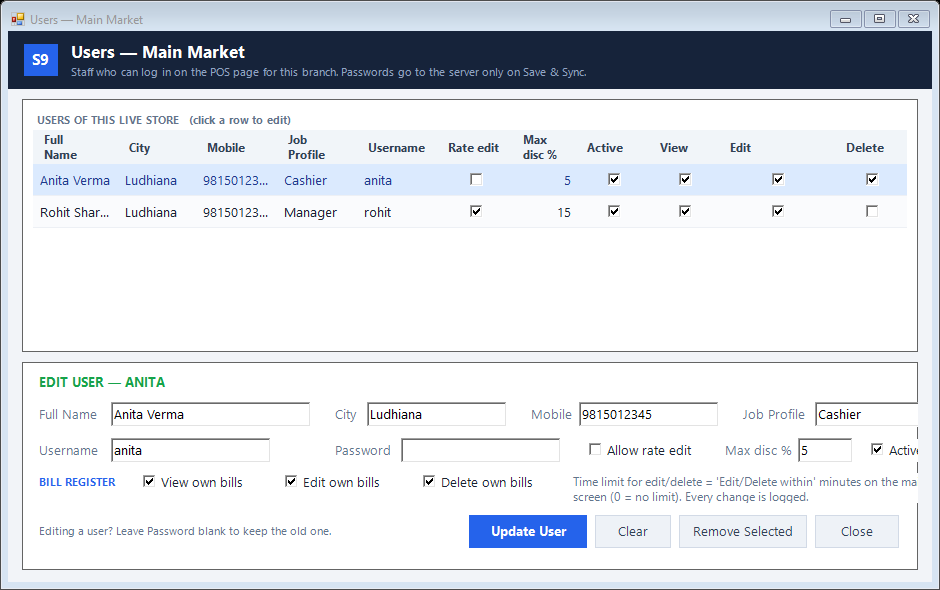
Give branch staff their own logins. Set rate edits, discount limits and permission to change their own bills.
Open USERS for the correct Live Store
Set rate, discount and own-bill permissions
Save & Sync, then test the cashier’s login
See the screens behind the workflow.
Real screens from the Speed Plus 9 manual. Open any image to inspect the details.
 View full size ↗
What to check on screen
Follow the steps in the matching product screen. These are Web POS controls. Desktop approval rules and restaurant permissions are separate settings; do not assume that one profile controls every product.
Give each cashier the access they need.
A Web POS user belongs to a Live Store. Set Allow rate edit and Max disc % for that person. Choose whether they can view, edit or delete their own bills, with the configured time window for changes.
After saving the user, use Save & Sync to Server so the branch receives the changes. Test the settings with that cashier’s login. A manually entered discount above the limit is refused; discounts from configured party rates, rate lists or schemes follow their own rules.
How to use it.
Decide what each cashier can change.
- 01
Open USERS for the correct Live Store
- 02
Set rate, discount and own-bill permissions
- 03
Save & Sync, then test the cashier’s login
What this looks like in your business.
A cashier may enter up to 5% line discount while the manager has a higher allowance. The owner can also keep the cashier’s rate field locked.
See the workflow in action.
Control Cashier Discounts with Speed Plus 9 Web POS | Set Staff Limits | https://solversolutions.in
SolverTeam tutorial for this topic. Screens and options can vary by installed version.
Open on YouTube ↗Good questions.
Clear answers.
Choose the workflow that fits your business and confirm its setup in a demonstration.
Can I stop a staff member signing in without deleting them?
Yes. Clear Active for the user and sync the change. Review the existing bills through the appropriate reports.
What setup should I confirm?
These are Web POS controls. Desktop approval rules and restaurant permissions are separate settings; do not assume that one profile controls every product.
What else can help?
Farata mobile orders
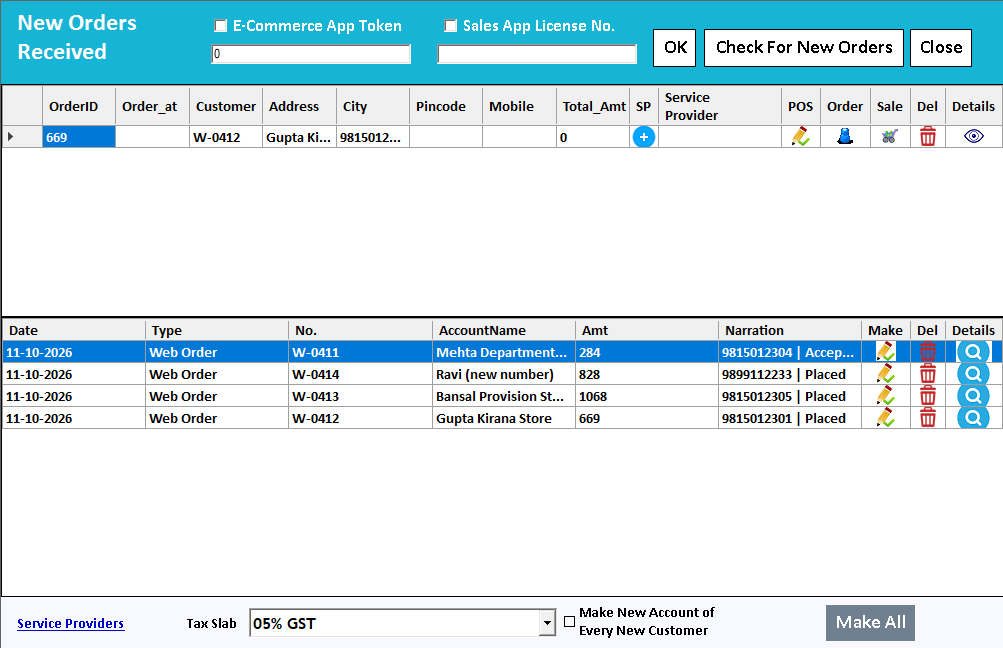
Collect the order where the conversation happens.
Read the guide →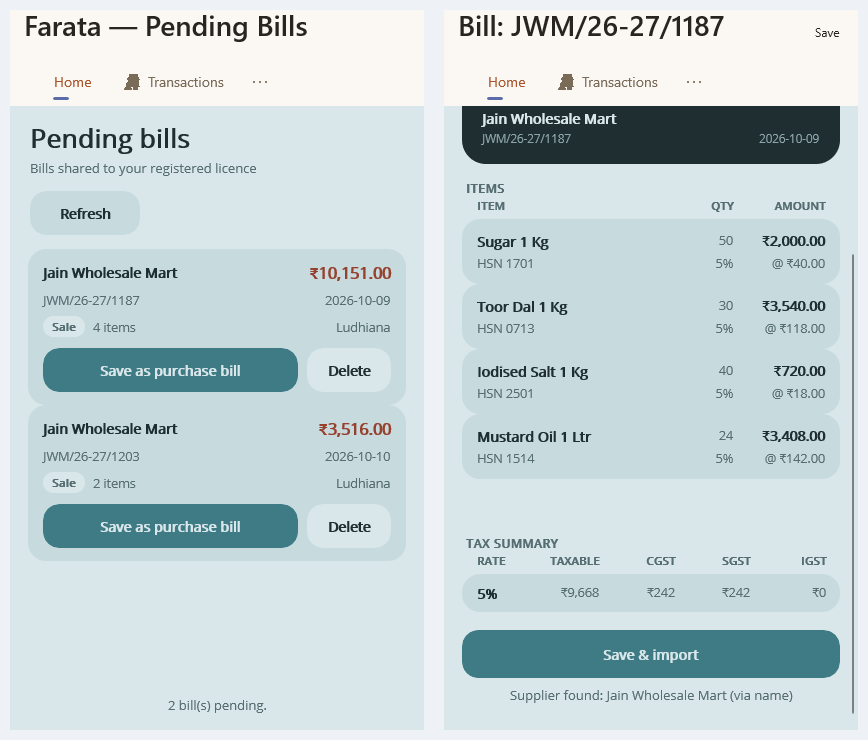
Farata bills and stock sync
Keep received bills close to the mobile workflow.
Read the guide →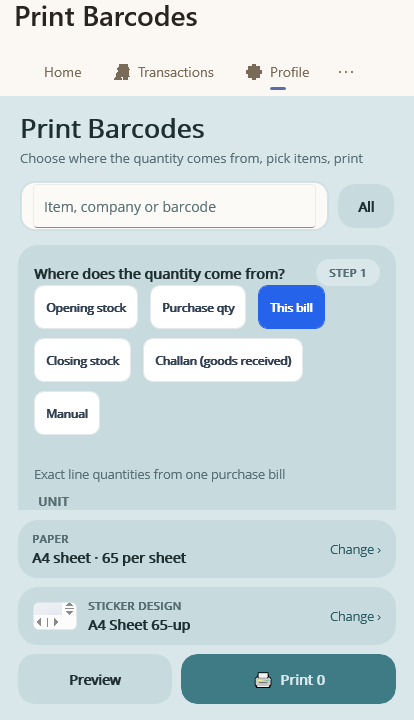
Farata mobile print and share
Share a mobile document with a clear purpose.
Read the guide →See it with a sample from your business.
Bring a sample bill or item list. We’ll show you the steps and answer your questions.