Start the next year with a checked opening position.
Use the supported financial-year workflow to prepare the next period. Keep backups and review balances and stock before beginning normal entry.
Previous-year closing position
Supported year change
Checked new-year openings
See the screens behind the workflow.
Real screens from the Speed Plus 9 manual. Open any image to inspect the details.
 View full size ↗
Decide what carries into the new year.
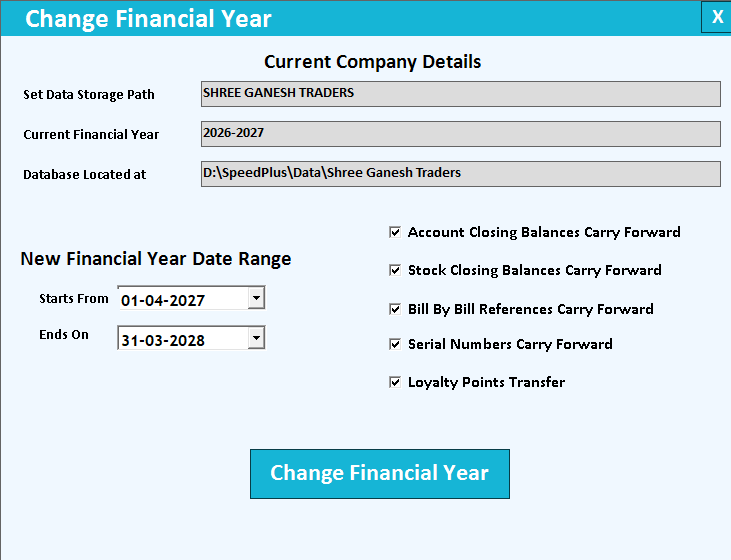
The Change Financial Year screen shows the new date range and carry-forward options for accounts, stock, bill-by-bill references, serial numbers and loyalty points. Review the choices against your closing position and backup before running the operation; do not treat a changed date alone as a completed year-end check.
A new financial year needs continuity with a clear boundary.
Financial-year change separates the next period’s work while preserving access to previous records. Opening stock and account balances must have a defined relationship with the closing position; otherwise the first report of the new year can be difficult to reconcile.
Back up the data, review the period and use the supported year-change process. Check representative customer, supplier and item balances in the new year. If late entries are made in the previous year, follow the supported synchronisation process and recheck the affected opening values.
How to use it.
Start the next year with a checked opening position.
- 01
Back up and review the closing company
- 02
Run the supported year-change process
- 03
Compare opening stock and balances in the new period
What this looks like in your business.
The accounts team checks the opening position before entering the first transaction of the new financial year.
See the workflow in action.
Speed Plus 9.0: How to Change Financial Year (English Video) FREE DEMO https://www.solversolution.in
SolverTeam tutorial for this topic. Screens and options can vary by installed version.
Open on YouTube ↗Good questions.
Clear answers.
Choose the workflow that fits your business and confirm its setup in a demonstration.
Why can a later change in the old year affect the new year?
If the change alters a closing balance that becomes an opening balance, the relationship needs updating through the supported process. Review both periods rather than manually forcing one side to match.
What setup should I confirm?
Confirm the handling of outstanding bills and loyalty balances for the installed version before completing the change.
What else can help?
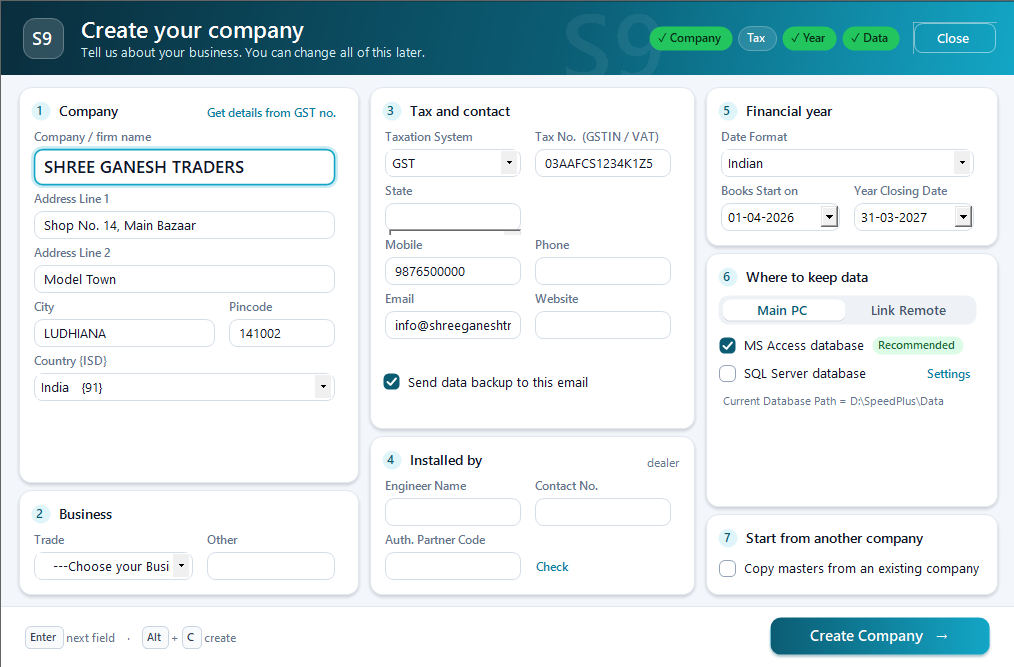
Company setup
Set the company up for the way you trade.
Read the guide →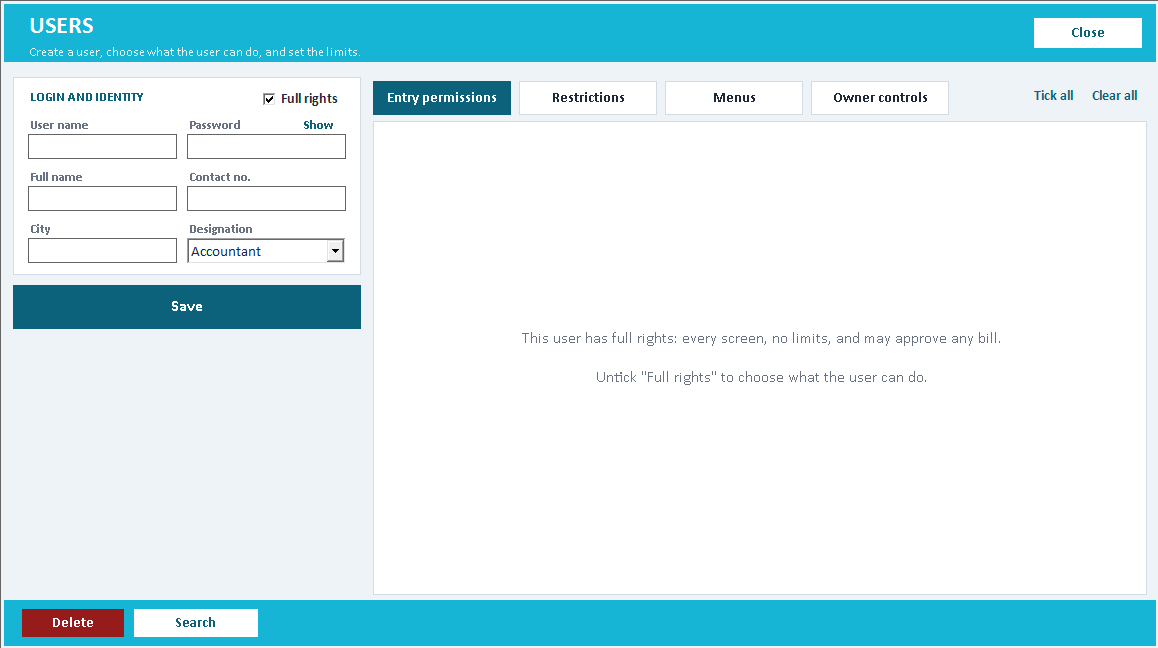
User permissions
Give staff the access their work needs.
Read the guide →Email backup and restore
Make backup a routine, and restore a tested skill.
Read the guide →See it with a sample from your business.
Bring a sample bill or item list. We’ll show you the steps and answer your questions.