A billing workspace made for touch.
Use a touch-oriented POS workflow when staff prefer tapping items to typing item names. Organise the available items and complete the sale through the configured payment process.
Visible product choices
Touch selection and quantities
Reviewed counter bill
See the screens behind the workflow.
Real screens from the Speed Plus 9 manual. Open any image to inspect the details.
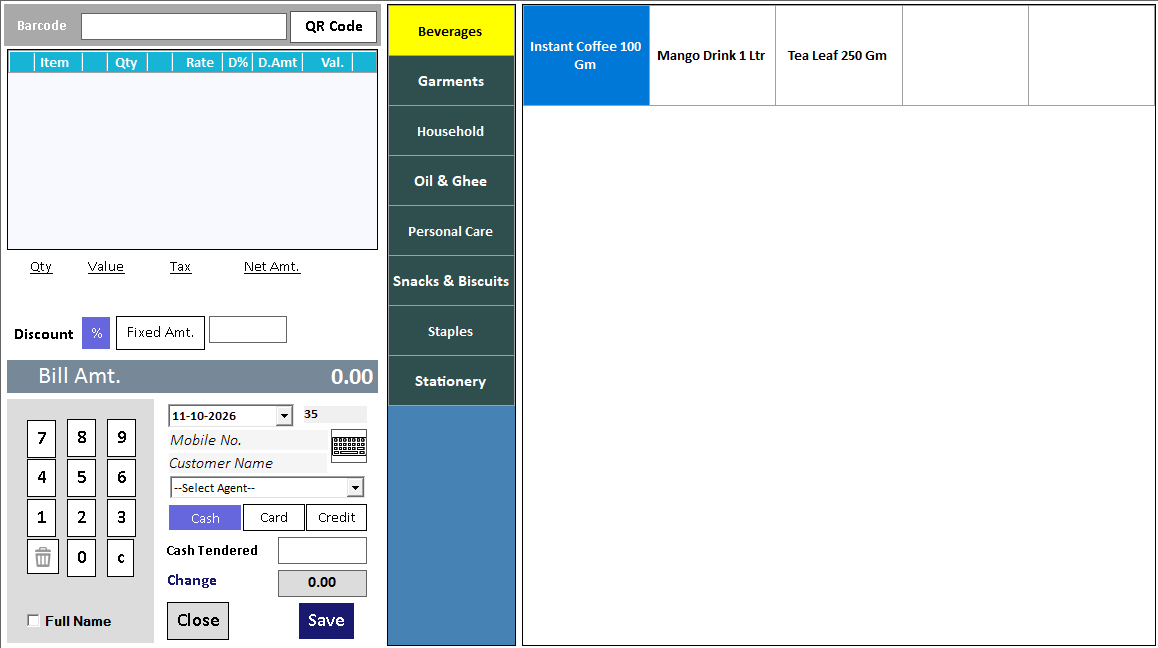 View full size ↗
Make frequent selections easy to recognise.
Touch POS uses on-screen selection to help staff build a bill without typing every item name. The practical benefit comes from a well-organised item layout: clear product names, sensible groups and buttons the cashier can select reliably on the actual device.
Arrange frequently sold items so they can be found quickly, then test selection, quantity changes and payment at working distance. A touch interface does not remove the need to distinguish similar items or units. Staff should still review the bill before accepting payment.
How to use it.
A billing workspace made for touch.
- 01
Prepare the item selection layout
- 02
Tap the required items and review the basket
- 03
Complete payment and produce the receipt
What this looks like in your business.
A quick-service counter selects commonly sold products using the touch screen during a busy service period.
A touch-friendly counter using the same business records.
Follow the decisions as well as the clicks.
- 01
Open the touch billing screen
Use Touch POS on the supported touch panel, tablet PC or laptop setup. Item groups organise the selection area; buttons can show product pictures or names.
- 02
Tap the items into the basket
Choose the item buttons and adjust quantities. Check the basket against what the customer is actually buying before moving to payment.
- 03
Review the customer and payment
Enter the customer’s mobile number when earning loyalty points. Tap Payment and choose the collection mode. The documented Touch POS screen earns loyalty points but does not have a Redeem Points box.
- 04
Finish the sale and receipt
Collect the amount, save and print through the configured receipt format. Touch POS uses the same item masters, stock and accounts as the rest of Speed Plus; it is a billing mode within the desktop software.
Based on User Manual 2026 · 14.1–14.2 and 21.5. Screen names and availability can vary by installed version.
Good questions.
Clear answers.
Choose the workflow that fits your business and confirm its setup in a demonstration.
Do I need a particular tablet for Touch POS?
The desktop tutorial demonstrates touch-capable Windows devices. Confirm the operating system, screen size, printer and supported installation with the team; Farata Touch POS is a separate app workflow.
What setup should I confirm?
Device size, item layout and supported controls should be tested with your actual menu or catalogue.
What else can help?
See it with a sample from your business.
Bring a sample bill or item list. We’ll show you the steps and answer your questions.