Bring the physical count back into the records.
Compare counted stock with the recorded position and review differences. Supported verification and stock-journal workflows help document an adjustment instead of hiding it in an unrelated bill.
Physical count
Difference against book stock
Reviewed adjustment and balance
See the screens behind the workflow.
Real screens from the Speed Plus 9 manual. Open any image to inspect the details.
 View full size ↗
02Follow opening, inward, outward and closing quantity+
 View full size ↗
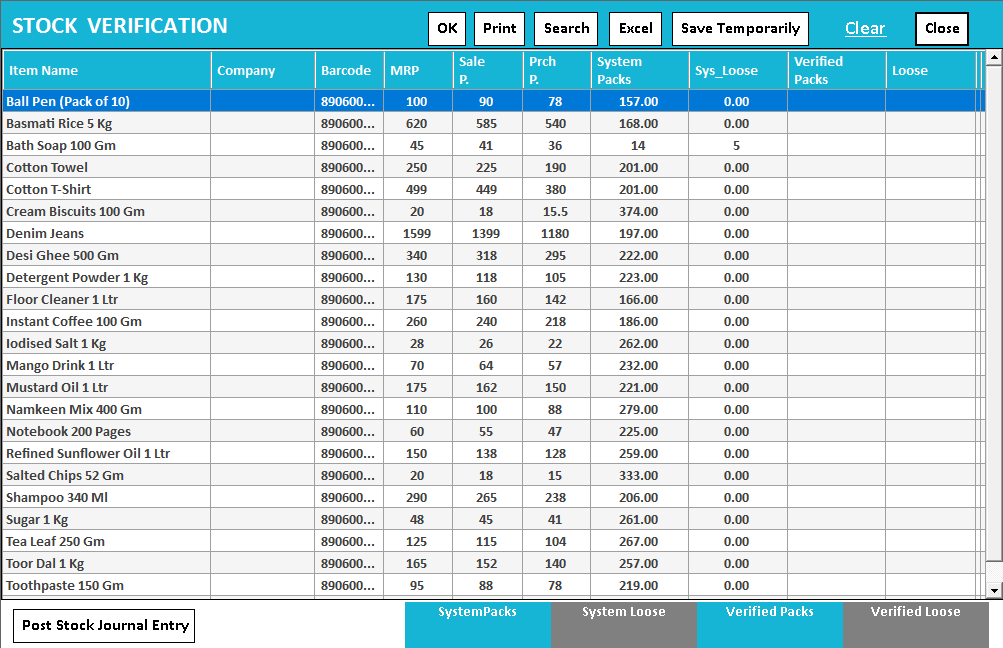
Count into Verified Packs, then review the difference.
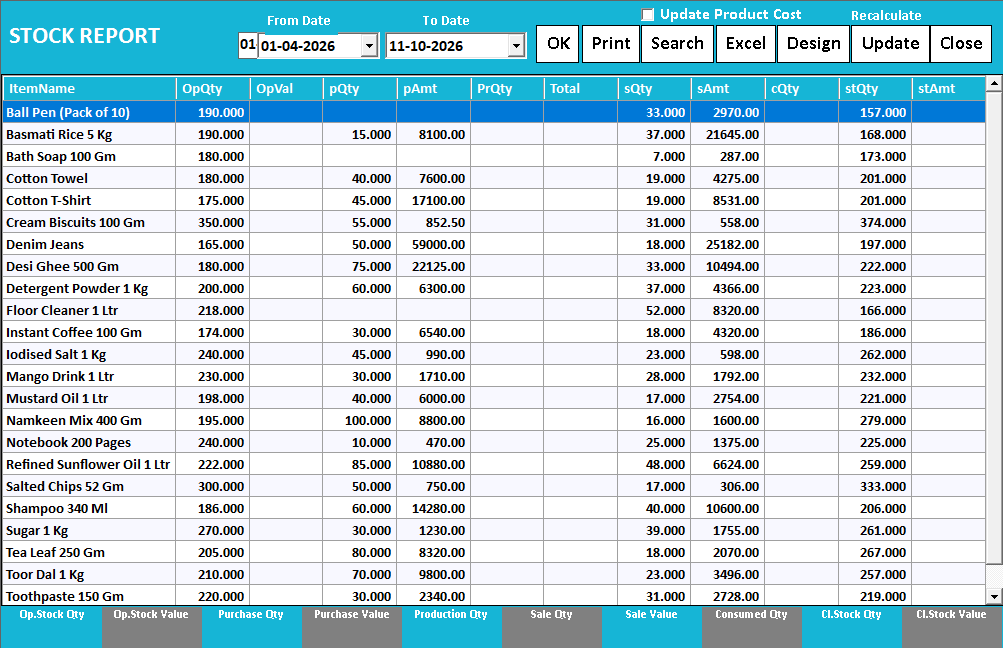
The Stock Verification screen places system quantities beside the Verified Packs column. The Stock Report separately shows opening, purchases, sales and closing quantities. Use that movement view to investigate a difference before posting the appropriate reviewed stock adjustment.
Count first. Explain the difference. Then adjust.
Stock verification compares the software quantity with what is physically present. A difference can arise from an unentered purchase, incorrect unit, missed sale, wrong variant or physical loss. The count identifies a discrepancy; investigation explains it.
Choose a manageable stock area and define the counting cut-off. Enter counted quantities, save progress where needed and compare shortages or excesses. Review intervening transactions before accepting the supported adjustment, then inspect the resulting balance.
How to use it.
Bring the physical count back into the records.
- 01
Choose the items or counting scope
- 02
Enter the physical quantities and review differences
- 03
Complete the appropriate reviewed adjustment
What this looks like in your business.
A cycle count finds 18 units where the record shows 20. The team first checks missing entries before approving the adjustment.
Count first. Investigate the difference second.
Follow the decisions as well as the clicks.
- 01
Choose the stock to verify
Open Stock Report → Stock Verification. Decide which shelf, brand or location you will count and note the quantity unit being used.
- 02
Record the physical count
Count the actual items and enter the verified quantity beside the system quantity. Match packs with packs and pieces with pieces; the visible column label depends on the screen.
- 03
Save and continue in parts
Save the verification when stopping. Reopen it to continue the remaining items rather than starting the count again.
- 04
Investigate before adjusting
Review shortages and excess against purchases, sales and opening stock. Check wrong-item entries and unbilled movements before making a reviewed correction.
Based on User Manual 2026 · 6.2–6.6. Screen names and availability can vary by installed version.
See the workflow in action.
How to Manage Stock Verification in Speed Plus 9.0 to reconcile Inventory as per actual balance.
SolverTeam tutorial for this topic. Screens and options can vary by installed version.
Open on YouTube ↗Good questions.
Clear answers.
Choose the workflow that fits your business and confirm its setup in a demonstration.
Can I count while billing continues?
Only with a clear cut-off and a way to account for movements during counting. Otherwise a sale made between the physical count and comparison can look like a shortage. Agree the procedure before the count starts.
What setup should I confirm?
Back up the company and review the reason for a difference before posting stock changes.
Bring a supplier bill into stock
Understand the review that sits between a bill photo and your purchase records.
- 01AI photo bill importRead guide →
- 02Purchase entryRead guide →
- 03Batch trackingRead guide →
- 04Stock verification and journalsYou are here
What else can help?
See it with a sample from your business.
Bring a sample bill or item list. We’ll show you the steps and answer your questions.