Share a mobile document with a clear purpose.
Use supported Farata document-sharing or printing options when working away from the desktop. Check the intended bill and output destination first.
Selected mobile document
Supported share or print option
Customer-readable copy
See the screens behind the workflow.
Real screens from the Speed Plus 9 manual. Open any image to inspect the details.
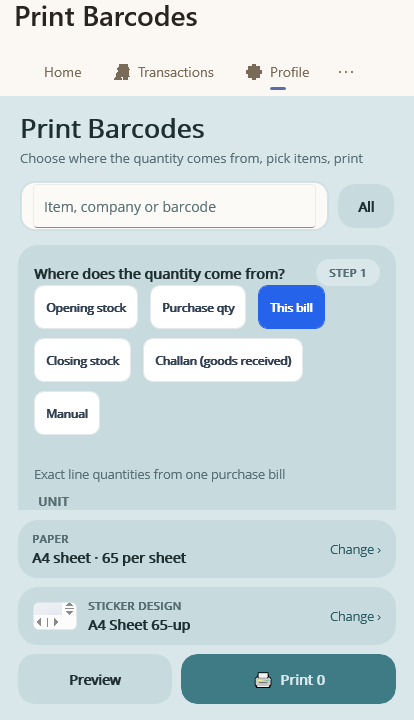 View full size ↗
Barcode printing is one mobile output workflow.
The Farata Print Barcodes screen lets the operator choose where quantities come from, then select paper and sticker design before Preview or Print. Check the actual printer and layout. Invoice sharing and barcode output are different tasks even when both are performed from the phone.
Share a readable record from the workflow in use.
Mobile printing and sharing help a salesperson or operator provide a customer copy without returning to a desktop. The important checks remain the document identity, recipient and output format, along with whether the connected device supports the intended print path.
Open the correct document in the supported Farata workflow, review its contents and choose the available sharing or printing option. Test one realistic bill on the actual phone and printer, including long names and totals. Reuse the same saved reference when another copy is needed.
How to use it.
Share a mobile document with a clear purpose.
- 01
Open the relevant mobile document
- 02
Choose the available share or print route
- 03
Review the resulting document on the receiving device
What this looks like in your business.
A business user needs to share a received document while away from the office.
See the workflow in action.
Print Barcode Labels From Your Phone: 6 Ways to Set the Quantity | Farata
SolverTeam tutorial for this topic. Screens and options can vary by installed version.
Open on YouTube ↗Good questions.
Clear answers.
Choose the workflow that fits your business and confirm its setup in a demonstration.
Does printing from mobile create another sale?
A document-copy action should refer to the existing record. Confirm the supported screen and saved reference; do not re-enter the transaction merely because the first print or share attempt did not succeed.
What setup should I confirm?
Device, printer and app-version support vary. Ask for a demonstration on the phone and printer you intend to use.
What else can help?
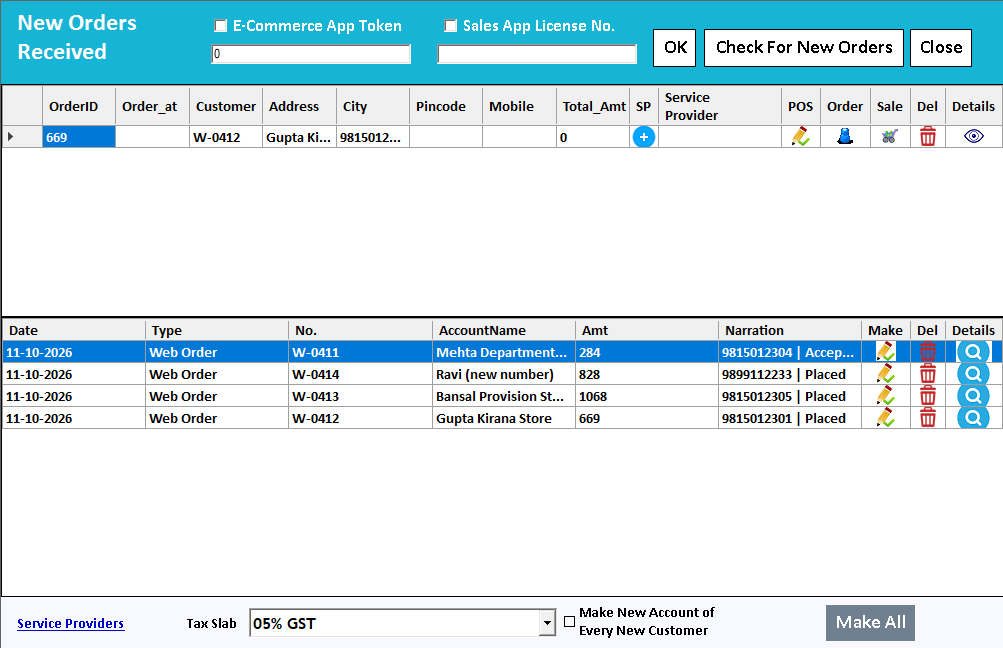
Farata mobile orders
Collect the order where the conversation happens.
Read the guide →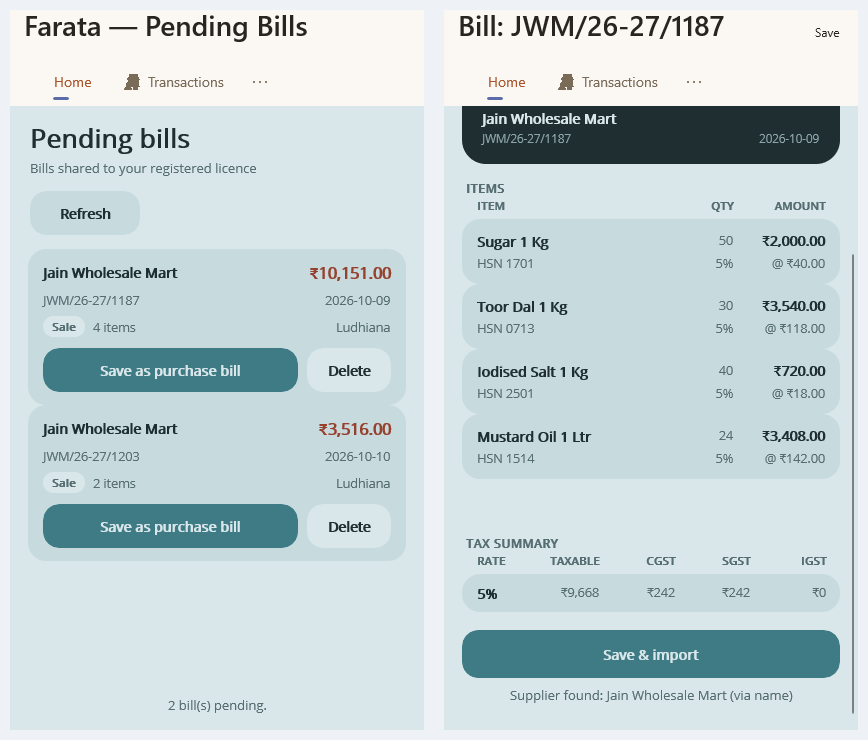
Farata bills and stock sync
Keep received bills close to the mobile workflow.
Read the guide →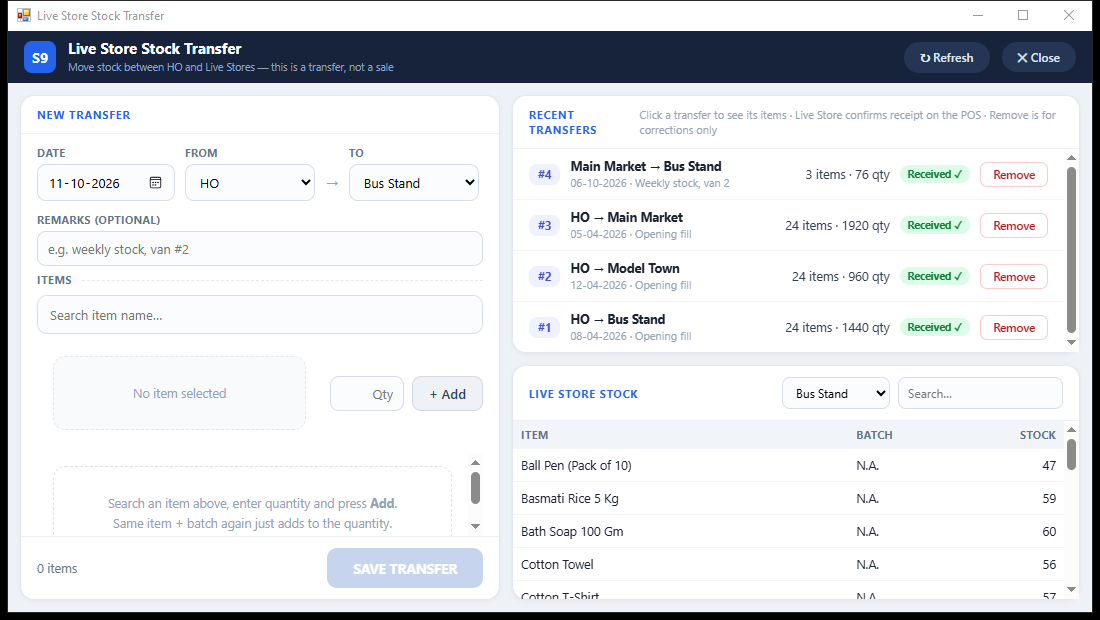
Branch stock transfers
Send stock. Confirm what arrived.
Read the guide →See it with a sample from your business.
Bring a sample bill or item list. We’ll show you the steps and answer your questions.